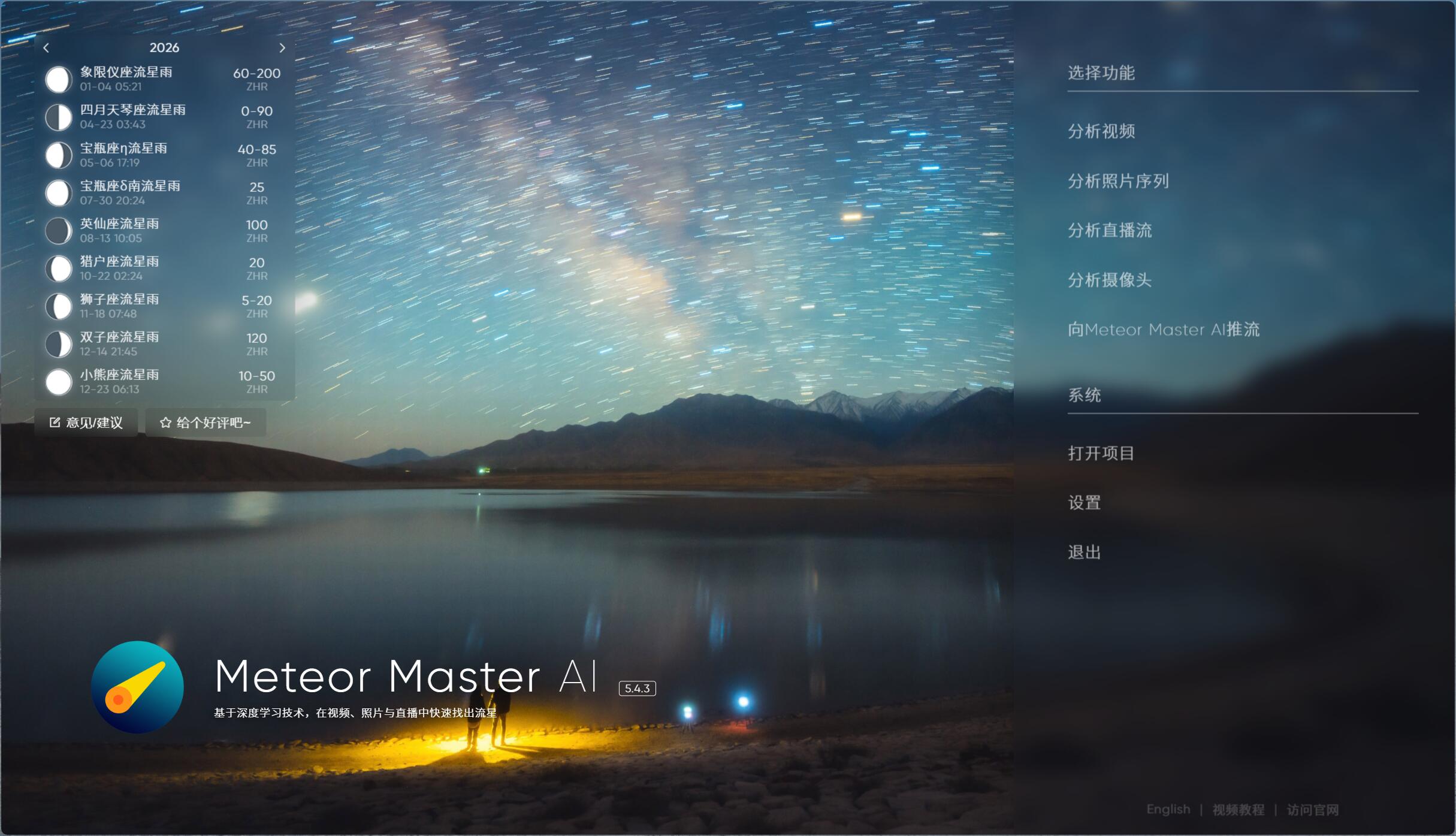
← HomeMeteor Master AI

Meteor Master AI / LATEST 5.14.0

Find meteors
hidden in the night sky.

Video, photos, live streams, your webcam, your camera — all supported: detection, coordinates and reporting, all automatic.

Meteor Master AI detects meteors, lightning, red sprites and artificial objects.

Get Meteor Master AI from the Microsoft StoreDownload Meteor Master AI on the App Store
Pay once, use foreverNo ads, no subscriptionsUnlimited installations

Quick links

It counts meteors every day.

LIVE / DATA

The numbers are totalled by the app itself, and every detection runs on your own computer. This page only shows counts, dates and trends.

Total found:
——
meteors · all users
Last 24h
——
As of ——
Daily peak
——
—— · highest single day

Meteor heatmap

——

Loading daily stats…

LessMoreNo data / future

Last 7 full days

——

Loading daily stats…

Readout

SNAPSHOT
Peak day
————
——-day total
——
How it's counted
Detected on your computer; only counts are sent back
Data through
——
The data below comes from Meteor Master AI users, in real time.

Six moves,one pipeline.

01 / FEATURES

Shooting plans, scheduled start/stop and one-click meteor-shower compositing are built in — finished frames no longer have to be a dream.

Meteor Master AI's detection screen, showing the video frame and its results
01 · AI detectionDetection screen
01 / 06

AI detection

Deep learning finds meteors, aircraft and red sprites in video and live streams

Deep learningGPU accelerationAutomatic detection
Meteor Master AI's input screen: video files, live streams and camera feeds
02 · Many input sourcesInput sources
02 / 06

Many input sources

Video files, timelapse sequences, live streams, RTSP cameras and OBS virtual cameras — several analysed at once
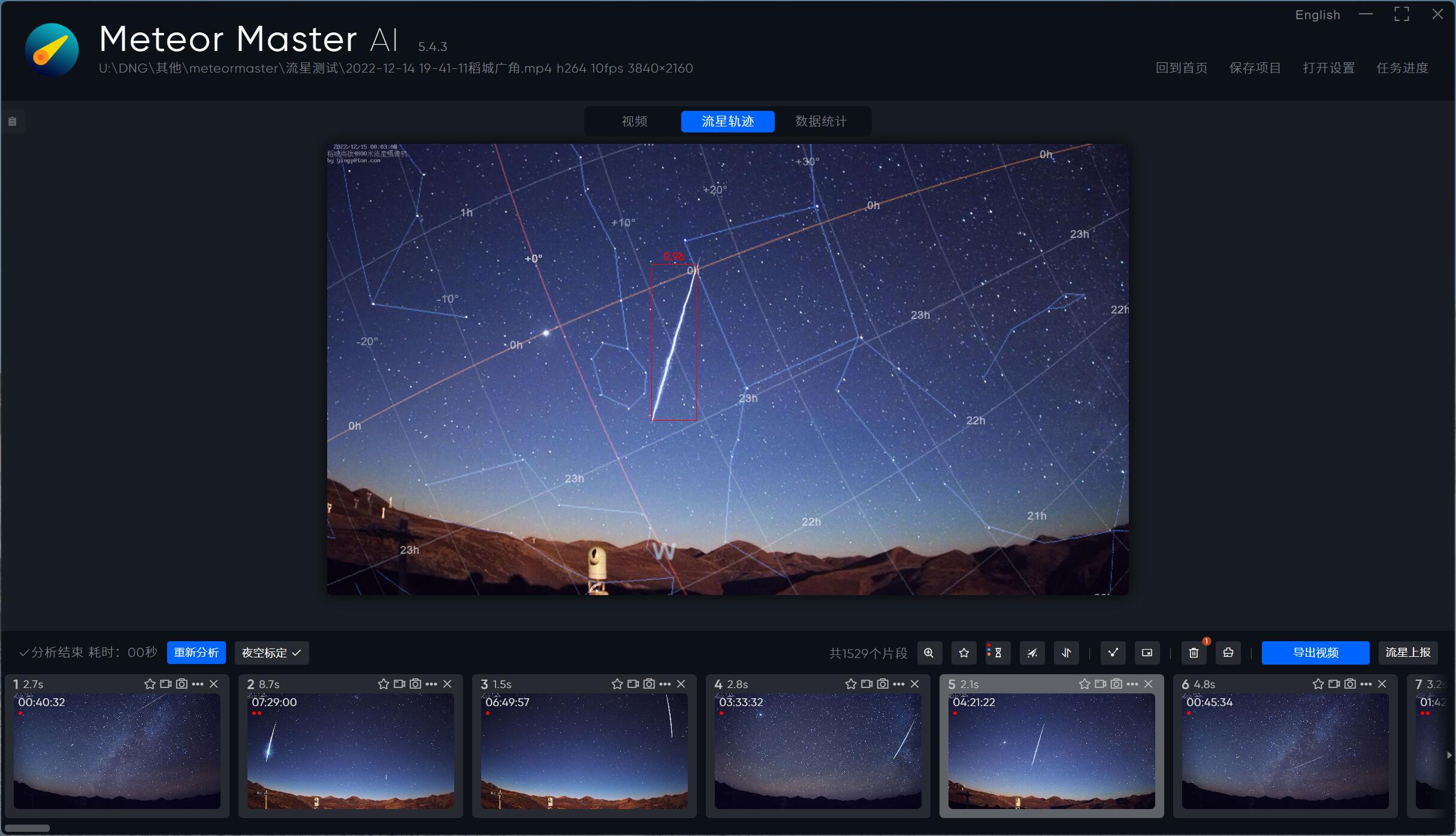
Video analysisLive streamsCamera inputMultiple instances
Meteor Master AI's star-map matching and coordinate results
03 · Coordinate calculationStar map & coordinates
03 / 06

Coordinate calculation

Matches the star field and works out each meteor's equatorial or horizontal coordinates, ready to report to NADC and MeteorLive
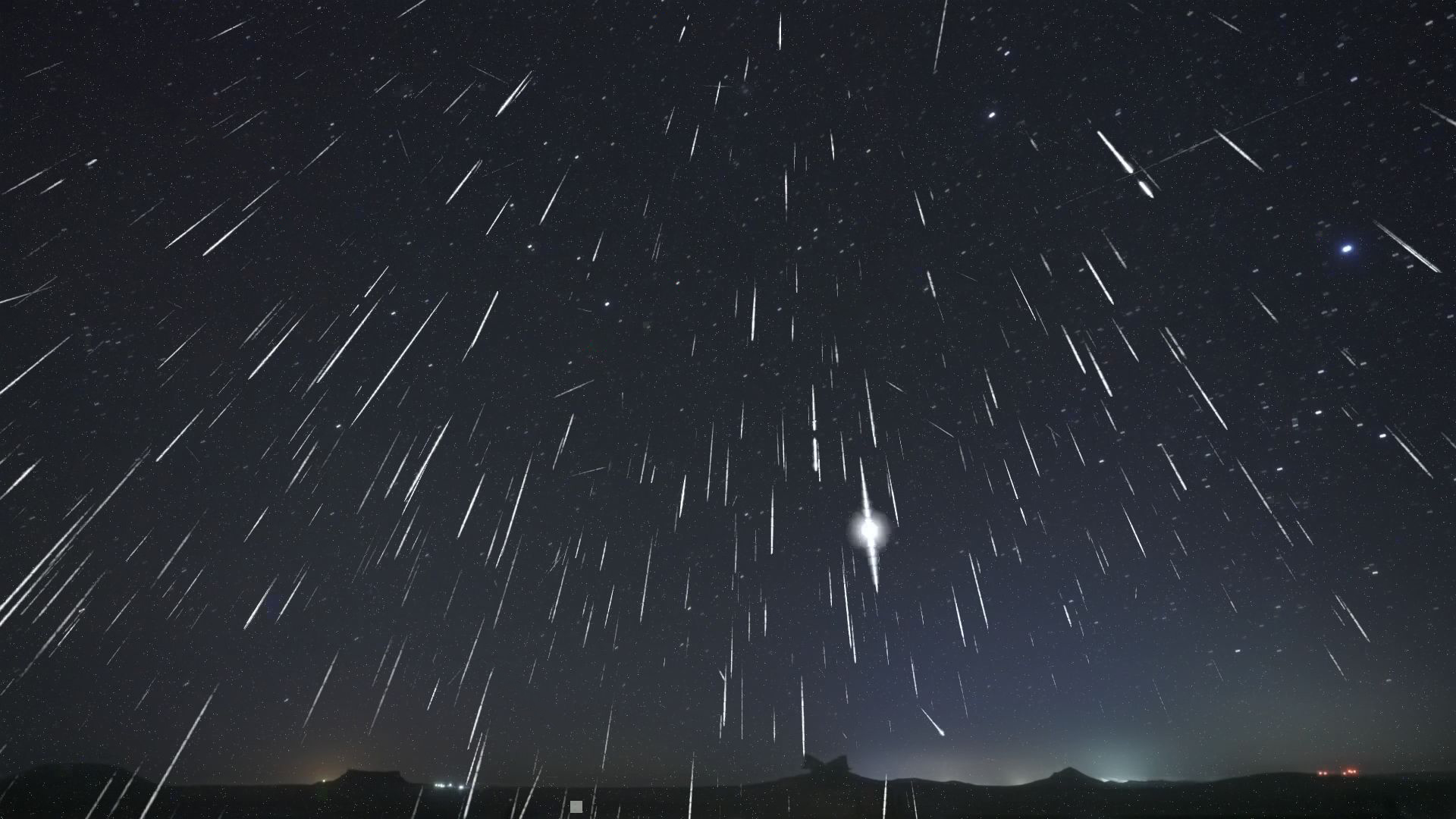
Star-map matchingCoordinate calculationOne-click reportingMeteorLive
Meteor Master AI's shower alignment and compositing results
04 · One-click shower alignmentShower compositing
04 / 06

One-click shower alignment

Aligns on the shower radiant quickly, then exports a compilation video and a long-exposure photo
Shower alignmentVideo exportPhoto stacking
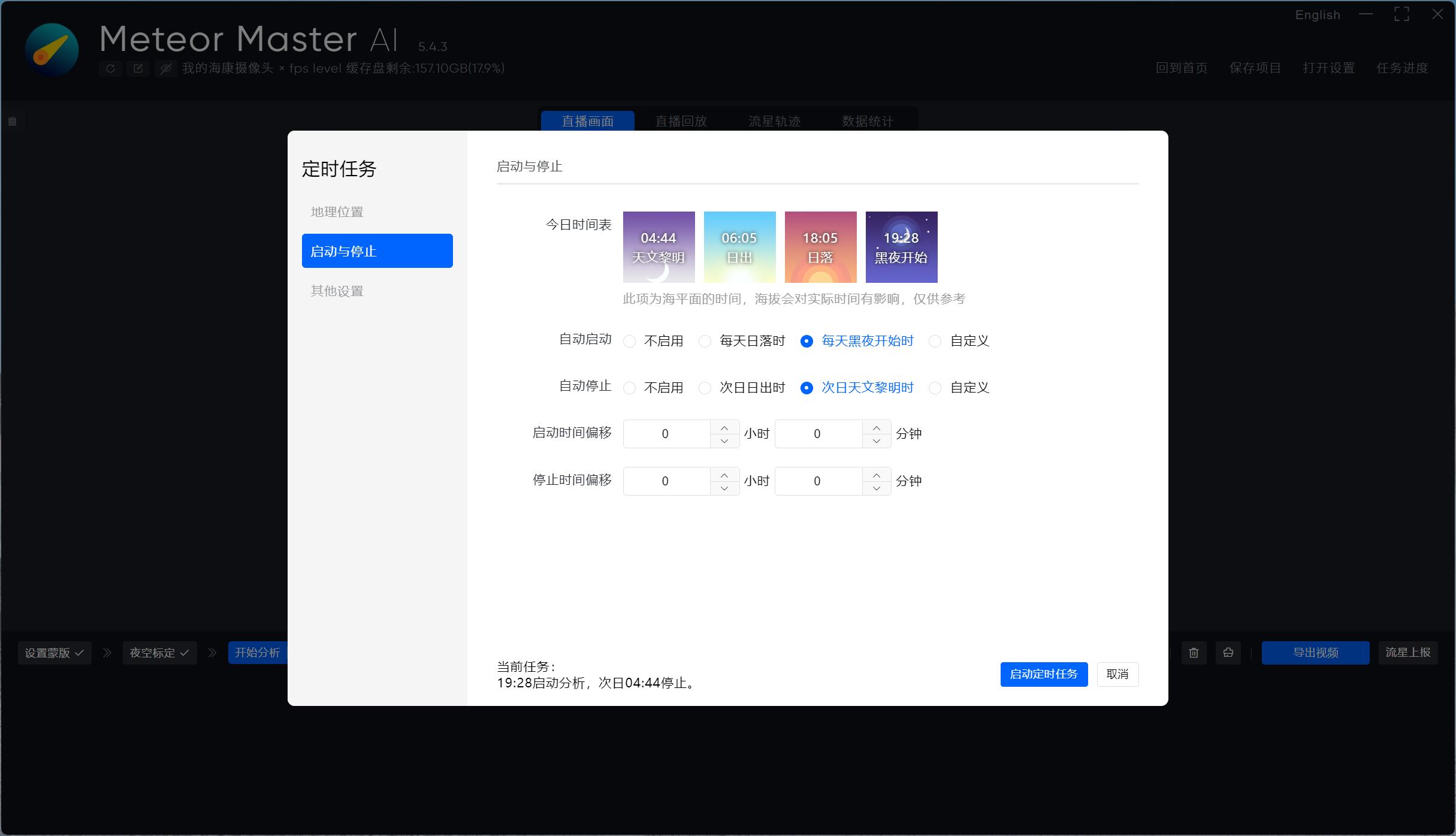
Meteor Master AI's auto start/stop and scheduling settings
05 · Auto start & stopScheduling
05 / 06

Auto start & stop

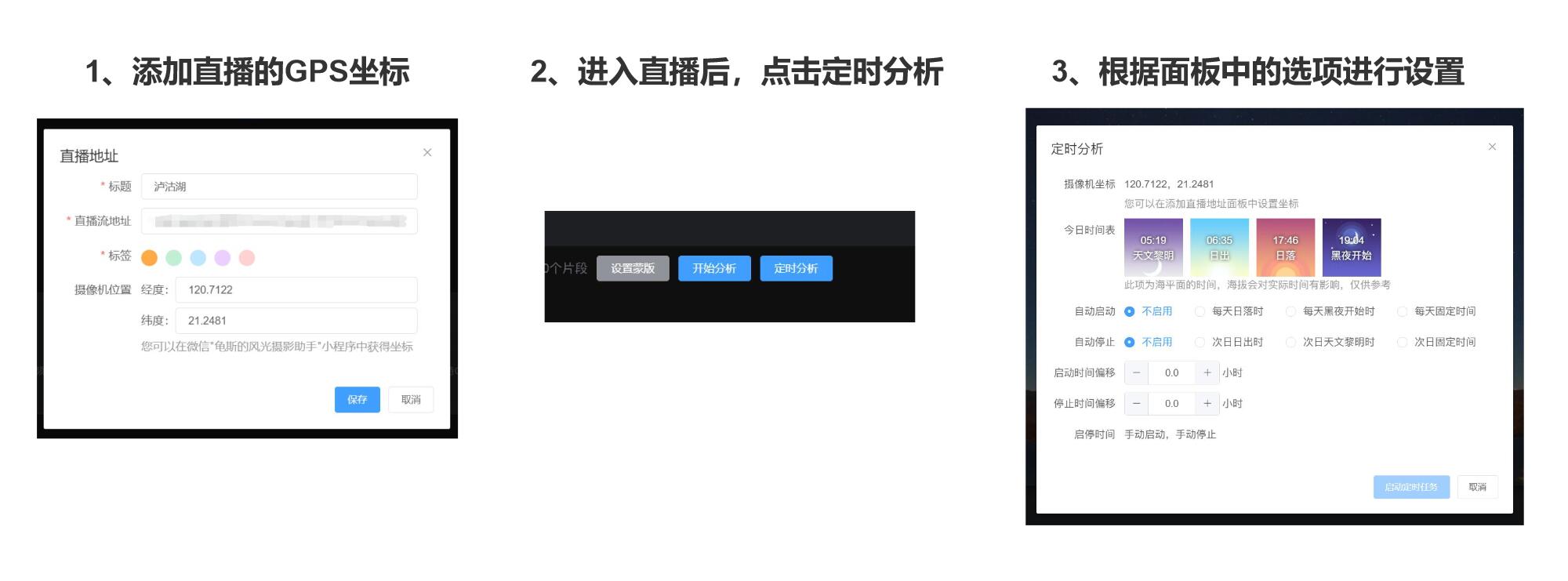
Starts and stops analysis by latitude/longitude and sunrise/sunset — made for long unattended runs
AutomationUnattendedScheduled
Meteor Master AI's live monitoring and real-time analysis screen
06 · Live monitoringLive analysis
06 / 06

Live monitoring

Analyses live video as it arrives, filters as it goes, and exports meteor clips and trail images

Live analysisClip exportTrail images
Local inferenceCUDA / DirectML / CoreML — Windows and macOS each use the matching engine.
Stars down to magnitude 7Bright-star data is built in, so coordinates need no network.
Filter while it analysesStar clips, and export meteor segments, compilation videos and trail images in one click.

Meteor-shower calendar

02 / CALENDAR

—— brings —— major meteor showers, listed below by peak time (Beijing time). ZHR is the theoretical hourly rate under ideal skies; what you actually see also depends on moonlight, weather and how high the radiant sits.

———— showersBeijing timeZHR (theoretical)
major meteor shower peaks and ZHR
ShowerPeak (Beijing time)ZHRMoon (approx.)
Loading meteor-shower data…

Moon phase is approximate: new moon is taken as 2000-01-06 18:14 UTC with a 29.530588853-day cycle. It is only meant for judging moonlight interference, not as precise astronomical data.

Fireball reporting platforms

03 / REPORTING

The app is already connected to two leading Chinese fireball-reporting platforms. When you catch a fireball, submit it from the app in one click — no exporting videos, trail images and shooting details, and no filling in forms on a website.

Packaged and submitted in one clickData goes from your computer straight to the platformIt never passes through another server

Video tutorials

04 / TUTORIALS

When something comes up, start with the tutorials — and you are always welcome to ask me directly.
Step-by-step guides

5 guides · click to read
01Tutorial: Analysing a video file

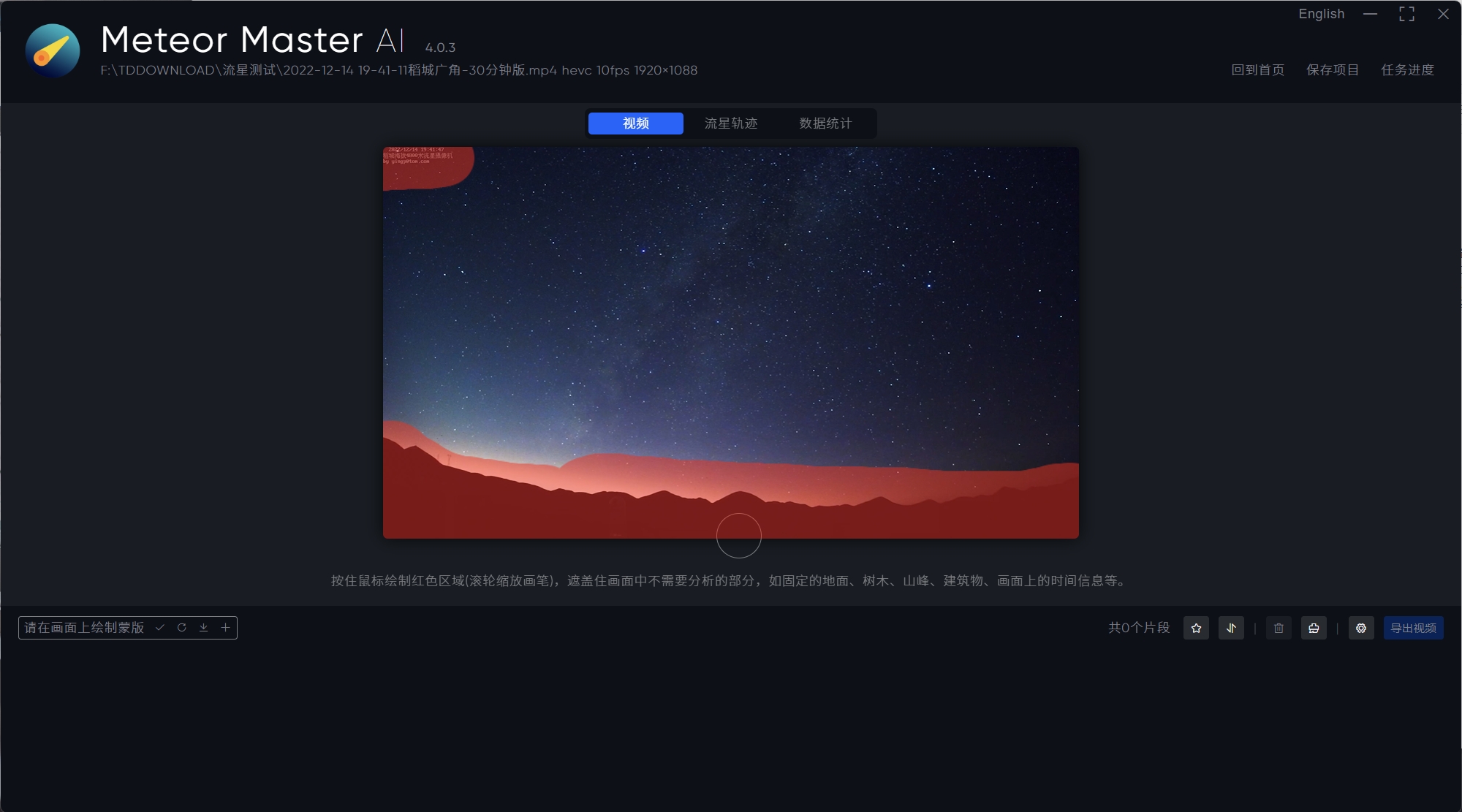
1. Launch the app and click "Analyse Video" to add a video file — the frames will appear at the top. If nothing shows up, re-encode the video to 1080p or 4K, MP4 / H.264, 8-bit, and try again.

2. Click "Set Mask", then use the mouse to paint the regions you want to exclude from analysis in red. You can save and load mask images to reuse them later. You can also make masks in your own image editor — just paint red on a transparent PNG.

3. Click the confirm-mask button (the tick / check-mark) and then "Start Analysis". The app keeps analysing in the background and gradually lists results; an on-screen progress bar reflects this. The list shows each meteor clip's duration and the timestamp at which it appears; click an entry to preview the frames.

4. Results aren't perfect — some will be false positives. Click the small × at the top-right of an entry, or select the entry and press Del to remove it. Click the star icon, or press F, to flag a clip.

5. If you enabled multi-threaded analysis in Settings, the analyser works on multiple time ranges in parallel, so the result list is not guaranteed to be in chronological order. Once analysis finishes, click the sort button to reorder.

6. Each entry has a "Quick Export" button on its preview header — click it to export a video clip, saved next to the source file or into a folder of your choice.

7. Once the whole video is done, click "Export All Clips" — a dialog will let you choose export options, including merging everything into a single compilation video.

02Tutorial: Analysing meteors in a live stream

1. Launch the app, click "Analyse Live Stream", "Analyse OBS Virtual Camera", or "Push to Meteor Master AI". Make sure the source is already running and pushing frames before you click the option.

2. Click "Set Mask", then use the mouse to paint the regions you want to exclude from analysis in red. You can save and load mask images to reuse them later. You can also make masks in your own image editor — just paint red on a transparent PNG.

3. Click the confirm-mask button (the tick / check-mark) and then "Start Analysis". The app keeps analysing in the background and gradually lists results; an on-screen progress bar reflects this. The list shows each meteor clip's duration and the timestamp at which it appears; click an entry to preview the frames.

4. Results aren't perfect — some will be false positives. Click the small × at the top-right of an entry, or select the entry and press Del to remove it. Click the star icon, or press F, to flag a clip.

5. The analyser works on a fixed interval, which is controlled by the "cache slice length" setting — you'll see a progress bar ticking at that cadence while the analyser runs in the background.

6. Each entry has a "Quick Export" button on its preview header — click it to export a video clip into a folder of your choice.

7. Click "Export All Clips" — a dialog will let you choose export options, including merging everything into a single compilation video.

03Tutorial: Connecting a Hikvision camera to Meteor Master AI

1. Buy a Hikvision camera and note its default IP from the manual — for example, the 3T87S ships with 192.168.1.64 (or click "Obtain Automatically" in the camera's web UI and pin a static IP in your router). I'll use the 3T87S (DS-2CD3T87SWDV2-L) at 192.168.0.151 for this example.

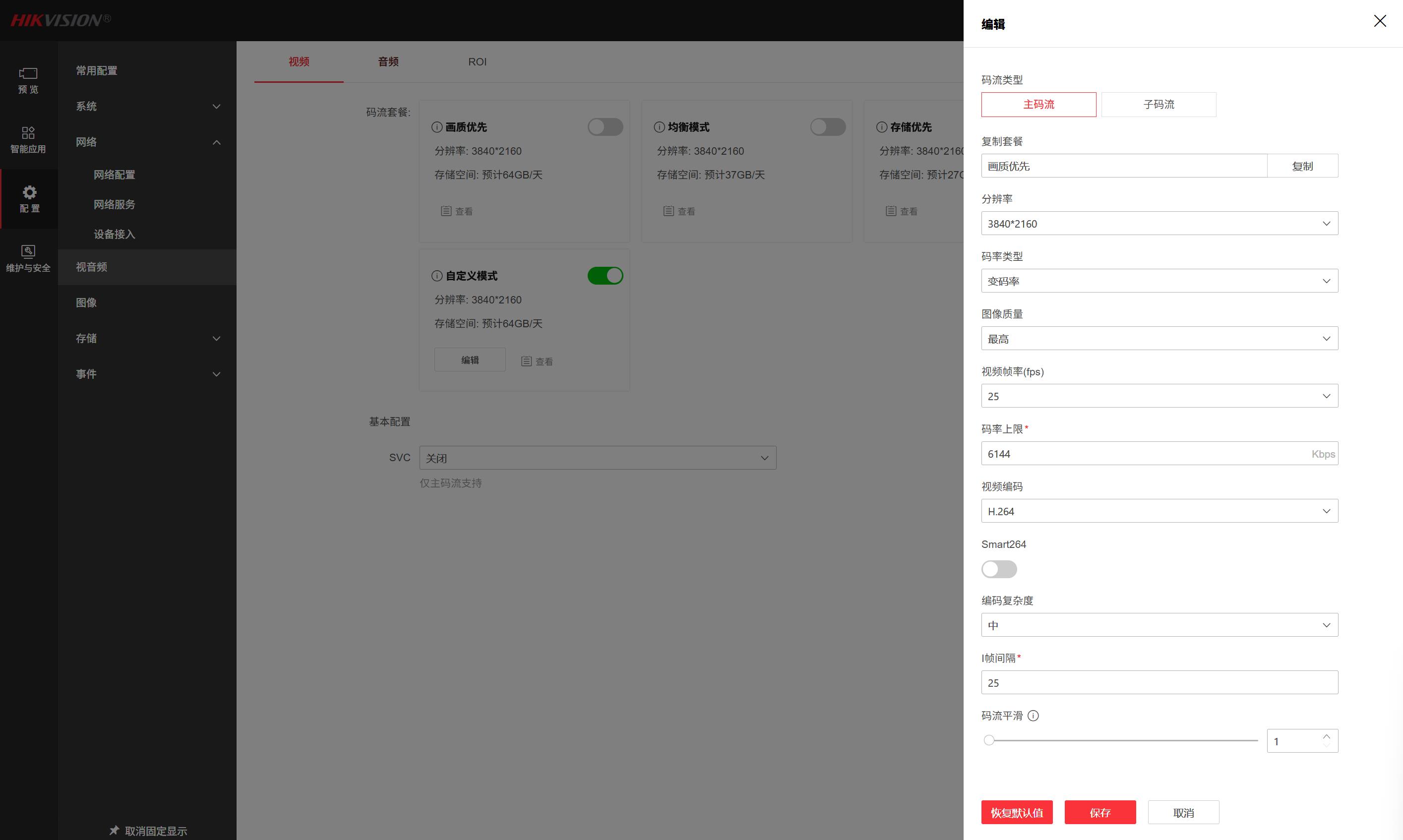
2. Open 192.168.0.151 in a browser, log in to the Hikvision web UI, then go to Configuration → Video & Audio → Video → Custom Mode and apply the settings shown below. Important: pick H.264 for the codec and turn off Smart264; lower the bitrate and enable "smooth" bitrate control.
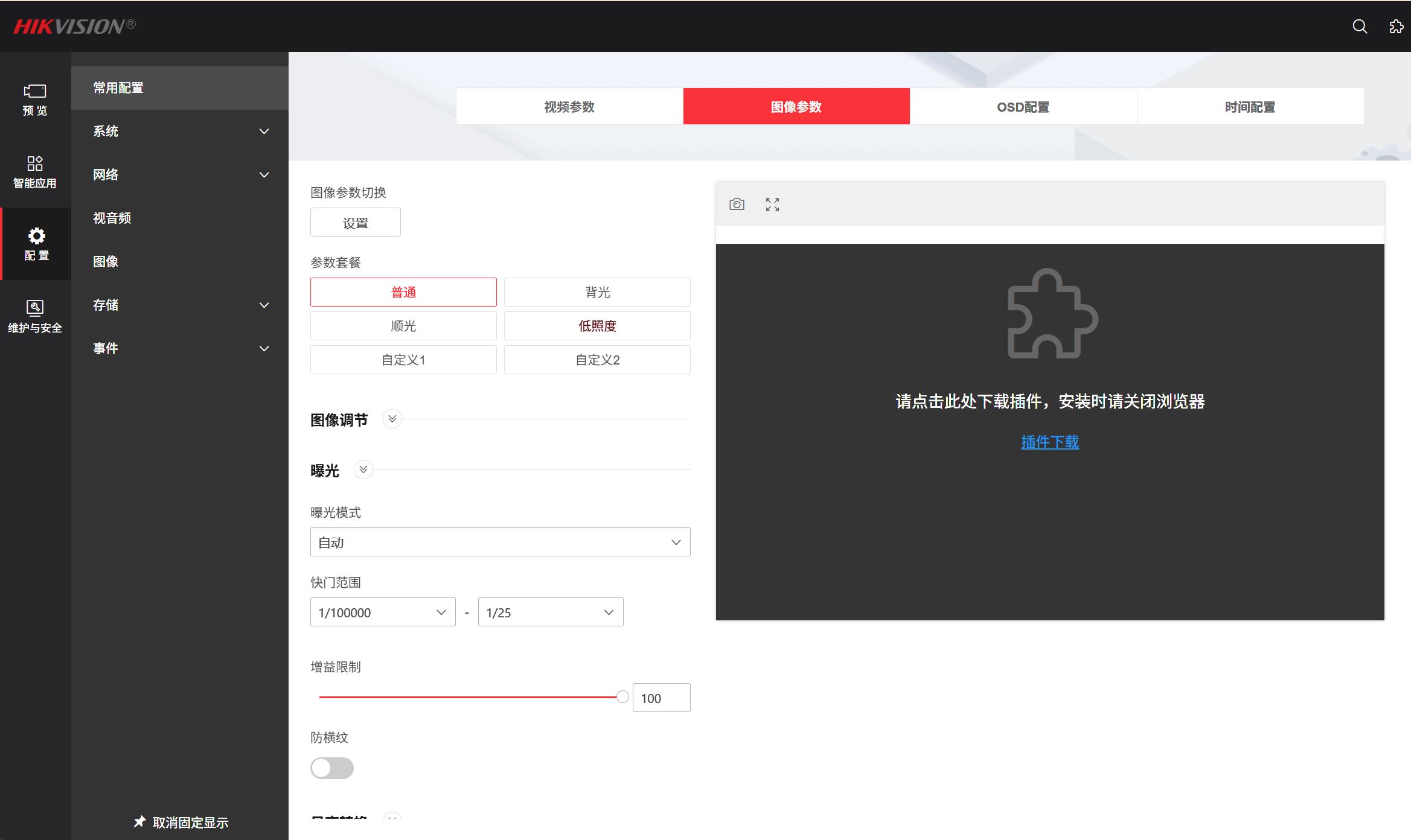
Go to Configuration → Image → Display Settings. In Exposure, set the shutter range minimum to 1/25 (use 1/20 if your camera's minimum frame rate is 20 fps).
3. Open Meteor Master AI, choose Analyse Live Stream → Add New Address, then enter the URL rtsp://<user>:<password>@<camera-ip>:554/Streaming/Channels/101. Click Save — the 4K feed will connect.
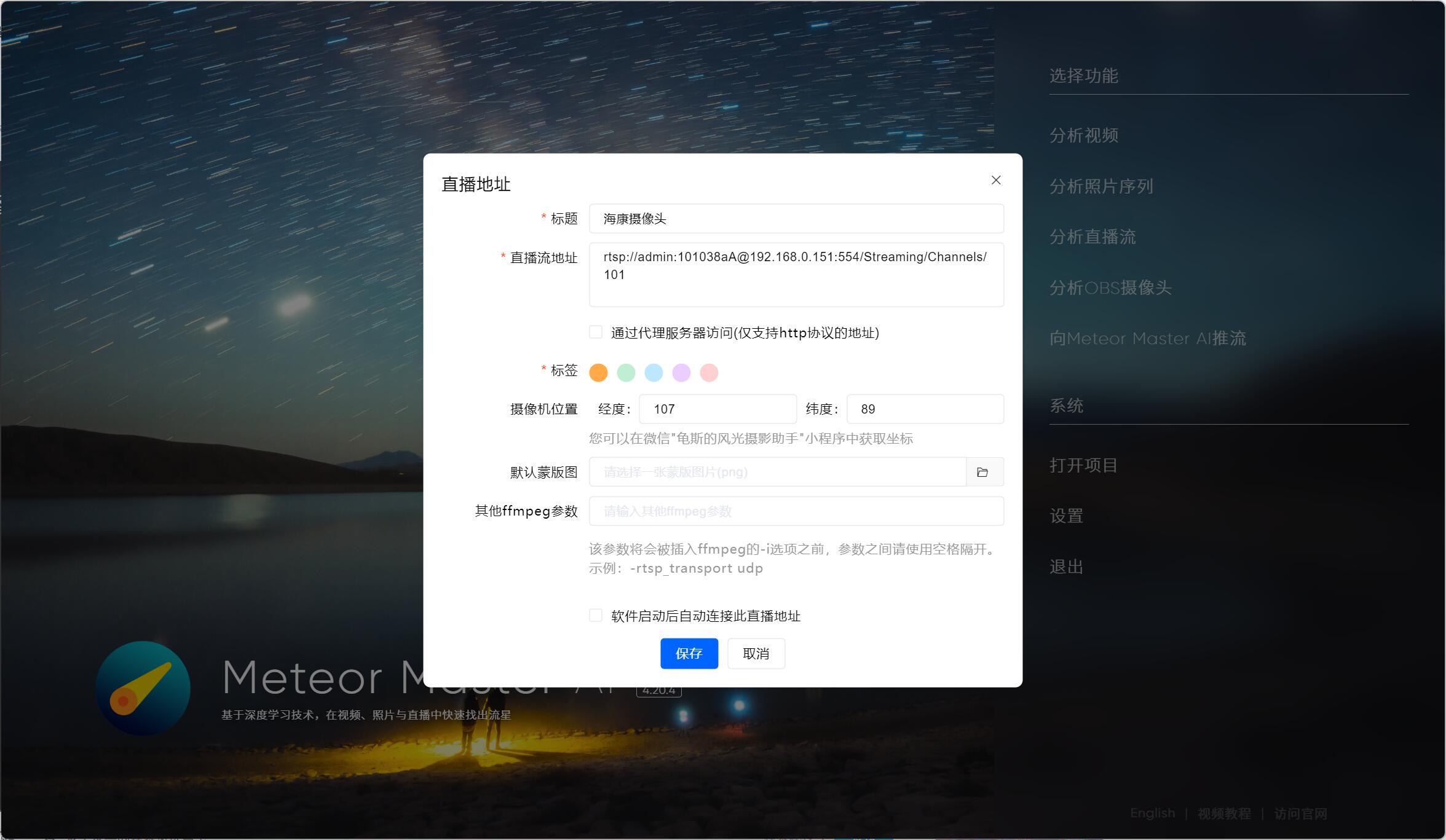
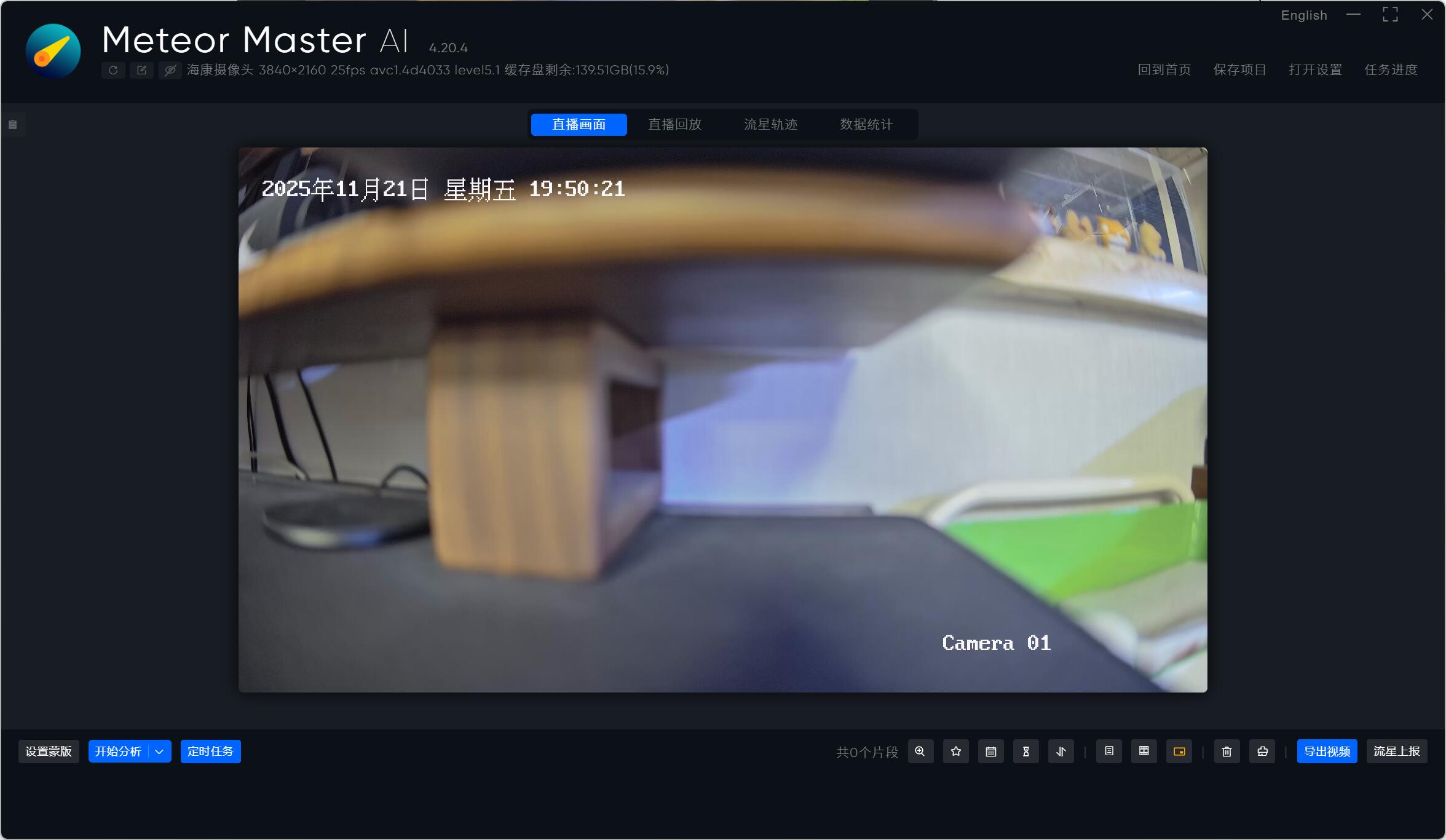
Tip: disable the camera's audio to save some bitrate, and turn off the camera's OSD overlay for cleaner frames. If you really need H.265, the MMA window will go black with audio playing — go to Settings → Live Settings → Transcode live signal, restart the app, and the picture will come back. This option is CPU-heavy though, so it's not recommended.

04Tutorial: Finding meteors in a timelapse sequence and aligning the shower

1. Launch the app, click "Analyse Image Sequence", and pick the folder containing your timelapse photos. The app will scan the folder for image files; if RAW images are present, the embedded JPG previews will be extracted automatically.

Tips: How to speed up extraction? Meteor Master AI uses Adobe DNG Converter and a built-in JPG extractor to render RAW into readable JPGs. Pick one of the two methods below to speed things up:
(1) Use my DNG auto-conversion tool — it converts photos to DNG (with full previews) while they're being copied from the card to your computer.
(2) Convert the photos to JPG yourself first (you can even pre-grade them to make the sky and meteors stand out) and put the JPGs in a separate folder for the app to read.

2. Click "Set Mask", then use the mouse to paint the regions you want to exclude from analysis in red. You can save and load mask images to reuse them later. You can also make masks in your own image editor — just paint red on a transparent PNG.

3. Click the confirm-mask button (the tick / check-mark) and then "Start Analysis". The app keeps analysing in the background and gradually lists results; an on-screen progress bar reflects this. The list shows each meteor clip's photo file — click an entry to preview the frames.

4. Results aren't perfect — some will be false positives. Click the small × at the top-right of an entry, or select the entry and press Del to remove it. Click the star icon, or press F, to flag a clip.

5. Each entry has an "Open Folder" button on its preview header — click it to jump to the file's location on disk.

6. Click "Export" — a dialog will let you choose export options, including moving or copying the meteor-bearing sequence to a specific directory.

7. Use the "Generate full-frame meteor composite" feature to one-click align the meteor shower.

05Tutorial: Integrating with OpenClaw

1. Install mma-bridge

Install mma-bridge — a small CLI tool that talks to Meteor Master AI.

Install via:

npm install mma-bridge -g

2. Enable MMABridge inside MMA

Open Meteor Master AI, go to Settings → General Settings, find the "MMABridge" option, and enable it (default port: 9000).

3. Install the OpenClaw skill

Once the steps above are done, install the mma-bridge skill in OpenClaw to start using OpenClaw with Meteor Master AI.

Download: mma-bridge skill on ClawHub
Recommended gear

05 / GEAR
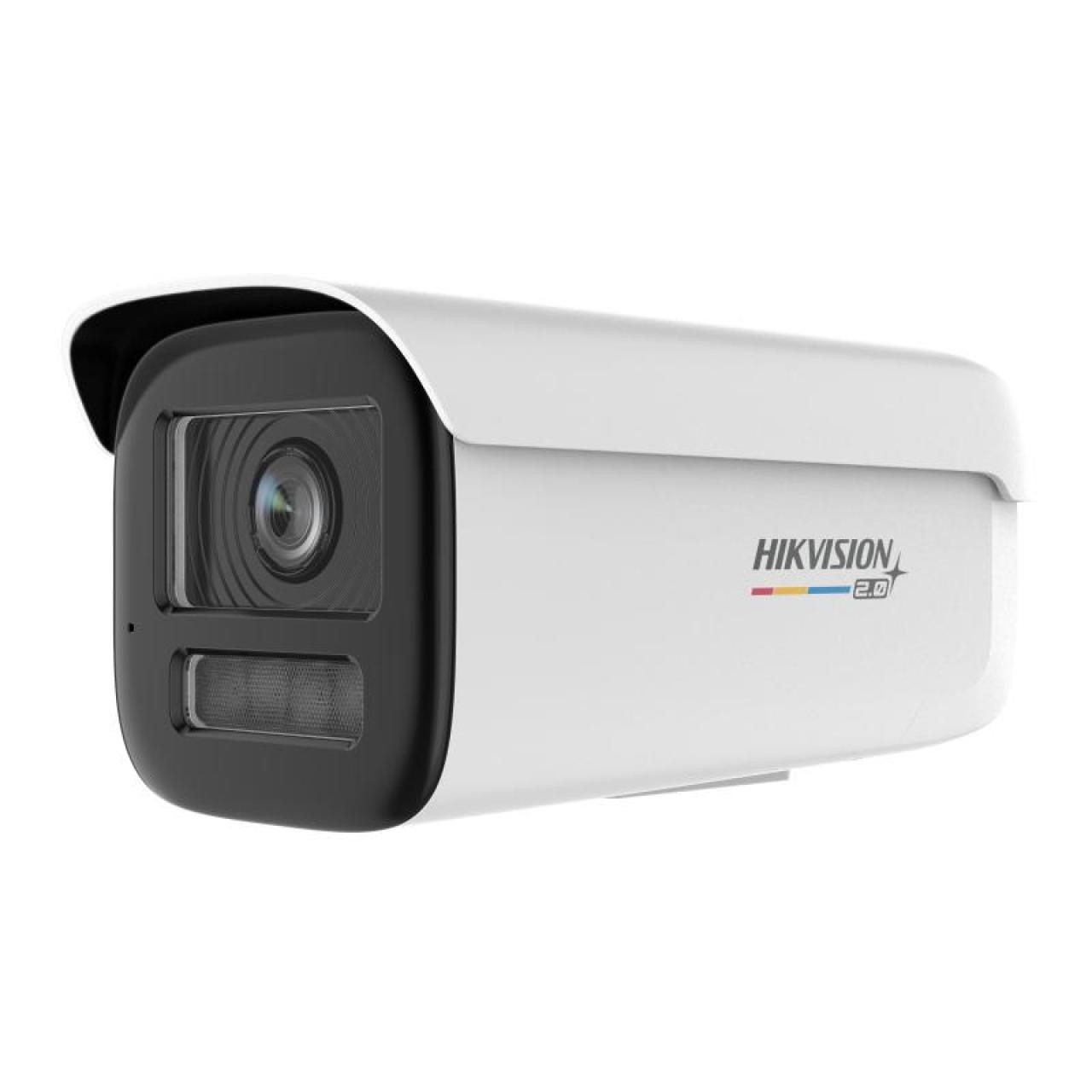
Hikvision 3T49 network camera
01 / 04

Hikvision 3T49

4 MP extreme-low-light full-colour network camera

Designed for extremely low-light environments. The full-colour high-sensitivity sensor paired with the F1.0 ultra-large-aperture lens delivers clear colour imagery even under starlight. 2K @ 25 fps with 120 dB wide dynamic range and 3D digital noise reduction, adapting to a wide range of lighting conditions.
  • Model: DS-2CD3T49SWDA4-L
  • Resolution: 2560×1440 @25 fps
  • F1.0 ultra-large aperture
  • 120 dB wide dynamic range
  • 3D digital noise reduction
Hikvision 3T87 network camera
02 / 04

Hikvision 3T87

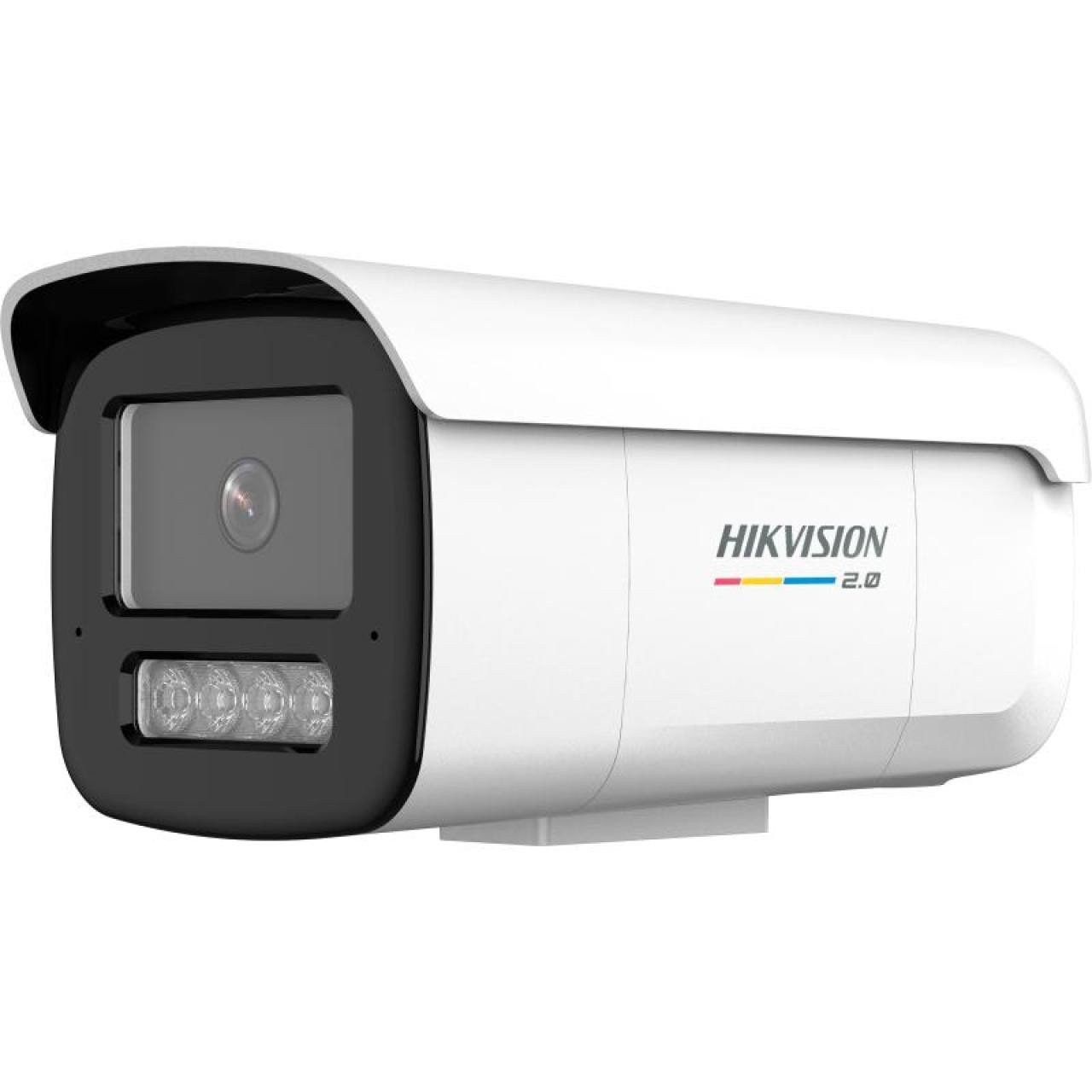
8 MP full-colour 2.0 network camera

8 MP 4K ultra-HD resolution with an F1.0 full-colour lens — still delivers clean colour images in near-total darkness. Combined with Hikvision's full-colour technology, it excels in low-light scenes and is ideal for meteor monitoring setups that demand the highest image quality.
  • Model: DS-2CD3T87SWDV2-L
  • Resolution: 3840×2160 @20 fps (4K)
  • F1.0 ultra-large aperture
  • 120 dB wide dynamic range
  • 3D digital noise reduction
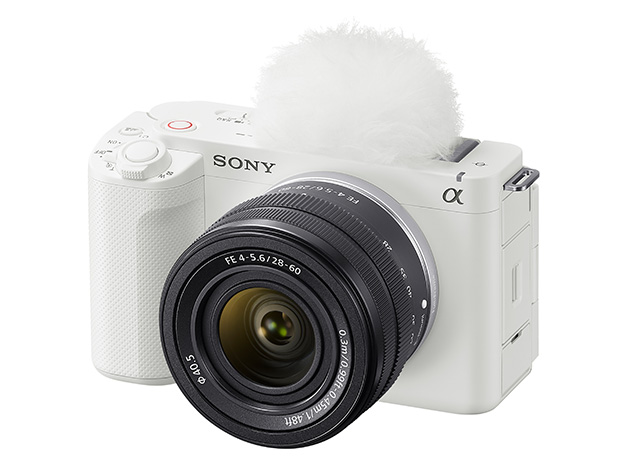
Sony ZV-E1 full-frame mirrorless camera
03 / 04

Sony ZV-E1

Full-frame vlog mirrorless

The Sony ZV-E1 is currently the smallest full-frame mirrorless body, designed for vlog and content creation. It uses the same 12.1 MP full-frame sensor as the A7S III, with outstanding high-ISO performance — making it an excellent choice for long-exposure meteor work in dark conditions. It also supports 4K 120 fps slow-motion for fluid meteor capture.
  • Sensor: 12.1 MP full-frame
  • ISO range: 80–102400 (expandable to 40–409600)
  • Video: 4K 120 fps / FHD 240 fps
  • In-body stabilisation: 5-axis, 5.5 stops
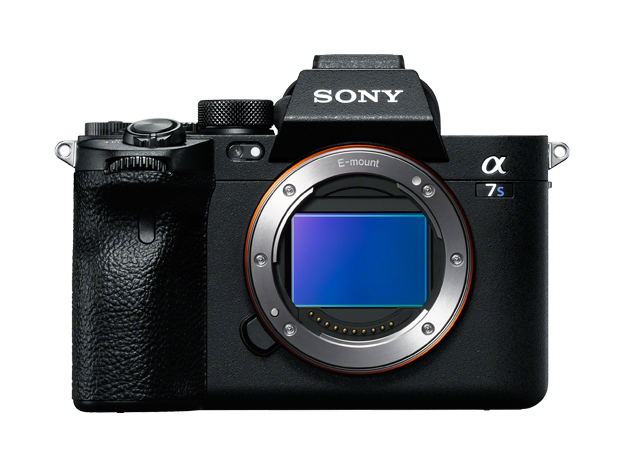
Sony A7S III full-frame mirrorless camera
04 / 04

Sony A7S III

Pro video mirrorless

The Sony A7S III is a full-frame mirrorless camera purpose-built for video, with what is currently the best low-light performance on the market. Its high-ISO output is an industry benchmark — even at ISO 12800 and above the image stays clean, making it ideal for astrophotography and meteor monitoring. Combined with excellent thermal design, it supports long continuous recording.

  • Sensor: 12.1 MP full-frame
  • ISO range: 80–102400 (expandable to 40–409600)
  • Video: 4K 120 fps / FHD 240 fps

Will your computer keep up?

06 / BENCHMARK

Benchmark data comes from the Meteor Master AI performance test tool: Baidu · Google Drive. Values are processing speed (×). n× means one second of processing analyses n seconds of footage.

Platform
Baseline
Acceleration

Per process = the average speed of each process; total = the sum across processes. With one instance the two are the same. Bar length scales to the fastest speed in the current filter.

FAQ

07 / FAQ

Total 35 questions in five groups: Purchase & Licensing, System & Environment, Detection, Features & Usage, Troubleshooting.
Purchase & Licensing 5 entries

01Do I need to buy the software again on a second computer?
If you want to use it on both macOS and Windows, you need to buy it separately on the App Store and Microsoft Store. Your Meteor Master AI license is tied to your Apple ID or Microsoft account — install and run it on as many machines signed in with that account as you like, no extra purchase required.
02Are upgrades free after I buy it?
All updates are free — we don't charge extra for major-version upgrades.
03Can I get a refund?
Because the software is a downloadable digital product, we can't offer refunds after purchase. Please try the free trial before deciding whether to buy. The trial is the older 3.0.2 release, with outdated models and analysis engine, and may contain bugs.
04What's the difference between the trial and the paid version?
The trial is the older 3.0.2 release, with outdated models and analysis engine, and may contain bugs. The paid version uses the latest models and analysis engine with no limits.
05Microsoft Store won't open, I can't buy, or the download fails?
First, turn off any proxy and enable the Windows Update service, then work through the steps in this article: Microsoft Store won't open — best fixes (Zhihu). If downloads are slow, go to C:\Windows\SoftwareDistribution, clear the DataStore and Download folders, then try again.

System & Environment 6 entries

06Can I use it offline?
Yes. The core features — detection, coordinate calculation, video export — all run locally, no network required. The only times you need internet are: first-time activation, update checks, and meteor reporting.
07Does Meteor Master AI support GPU acceleration? How do I know if my computer supports it?
On Windows, the engine uses DirectML acceleration (it works on most AMD, Nvidia, and Intel GPUs — make sure DirectX 12 is installed). On macOS, it uses CoreML. MMA auto-detects and picks the right engine for the best performance. If you run into out-of-memory errors when analysis starts, go to Settings and turn on the "Compatibility Mode" toggle for the relevant engine to disable hardware acceleration.
08Why can't my computer run video detection? Live streams don't work either?
Please make sure you've installed the VC++ Redistributable and DirectX 12, then restart your computer and try again. Also check your antivirus settings to make sure it isn't quarantining any critical parts of the program. Rest assured, builds from the Microsoft Store and Apple App Store are reviewed by Microsoft / Apple for security and integrity.
09How do I pick a suitable camera?
ISO performance and noise control at long exposures are the key things to look for. Full-frame cameras or astro-dedicated cameras work best. See the "Recommended Gear" page on the site for specifics.
10What kinds of video aren't supported?
Both files and live streams must be fixed, continuous, low-interference, and playing at a normal frame rate. Footage with too much shake will produce large numbers of false positives and misses. If a clip from a fixed mount includes camera moves or reframing, please cut it into multiple fixed-position segments first.
11Which profile should I use?
For analysing local video, we recommend Dlnet (more accurate but heavier on hardware). For live-stream analysis, use "General" (balanced between performance and accuracy).

Detection 7 entries

12How accurate is the detection? Will there be false positives and misses?
The deep-learning model has been trained on a large dataset, but in tricky conditions (trees occluding the sky, aircraft, condensation on the lens) it can still misfire or miss. We recommend manual review combined with the flag / star tools. False positives are inevitable — don't rely 100% on the auto-detection.
13Can it detect sprites?
Yes. Sprites are high-altitude discharges that occur above thunderclouds, and the model is specifically trained and optimised for them.
14Can I bring my own detection model?
Not yet. The detection model is one of the project's core assets; only the bundled trained model is available today. A training tool may come in the future, but it won't be open-sourced in the short term.
15What dataset was the detection engine trained on?
It was trained on meteor image and video data the MMA team has collected over many years — long-exposure photos, timelapse videos, surveillance footage — covering a wide range of environments (urban, wilderness, snow mountains, coastal).
16Can aircraft get mistakenly detected as meteors?
Yes. Airplanes, satellites, drones, insects — anything moving across the frame can be misdetected. MMA ships with a dedicated aircraft-detection model, and the result list lets you filter by category to exclude aircraft. False positives are inevitable, so manual review is still recommended.
17I started analysis days ago and still have no results — why?
Meteors streaking through a camera's field of view are random events — we can't guarantee one will appear and be captured in any given window. Most nights you'll still pick up planes and satellites even when there are no meteors. Make sure your night sky and camera setup can actually see meteors. If you've used other meteor-detection software before (e.g. UFO Capture) and have records of captures, but Meteor Master AI picks up nothing at all, click the "i" icon next to the frame rate at the top of the window and compare your camera's actual shutter speed with the detected one. If they don't match, follow the popup to adjust (e.g. if your camera shoots at 1/3s = 0.33s but MMA shows 0.1s, go to Settings and manually set the interval to 0.33).
18Why am I getting a lot of false positives?
False positives are inevitable — Meteor Master AI can't guarantee 100% accuracy (although that's our goal). It works more like a "first-pass filter" that proposes candidates; you decide which ones to keep. If you see large numbers of false positives, try the following: (1) check whether your camera has too much noise, or whether the environment has too many car lights and other interference; (2) check whether the mask is drawn correctly; (3) check whether a too-sensitive profile is enabled; (4) open "Filter Settings" to automatically discard overly short results.

Features & Usage 10 entries

19Can I run multiple instances?
Yes. Open several Meteor Master AI instances to analyse different videos or live streams in parallel. Each instance uses CPU and GPU resources, so plan accordingly for your hardware.
20I have multiple cameras — how do I analyse them all at the same time?
You can run several Meteor Master AI instances on the same computer with no hard limit. If your cameras support streaming (e.g. Hikvision's RTSP stream), use the "Analyse Live Stream" feature directly. If they only expose a webcam feed (e.g. Xiaomi cameras), push the frames through OBS (OBS can also be opened multiple times), then use the "Push to Meteor Master AI" feature.
21Can I report to IMO instead of NADC?
Today only NADC (the National Astronomical Data Center fireball reporting platform) is supported. IMO reporting is on the roadmap.
22Do you support fisheye lenses?
Yes — any focal length, including fisheye lenses. The calibration screen exposes a fisheye-strength knob so the star-map matching range can adapt to heavily distorted frames.
23How are meteor coordinates calculated?
After night-sky calibration, the app uses the on-frame star positions plus the focal length and sensor size you entered to back-project each meteor's pixel location into celestial coordinates (RA / Dec) or horizontal coordinates (azimuth / altitude). Accuracy depends on the calibration quality.
24Is the night-sky calibration hard to do?
From version 5.9.0 onward there's an auto-calibration mode that usually finishes in one click, as long as the frame has enough bright stars. If stars are sparse, you can manually drag sliders to lock onto a few reference stars. See the "Tutorials" section on the site for the full walkthrough.
25How should I draw a mask?
Open the mask panel and paint directly on the frame with the mouse (scroll wheel adjusts brush size) — left-click paints, right-click erases (on macOS, hold Option + left-click to erase). Red areas are regions excluded from analysis. Usually you only need to leave the sky region in white. In other words, paint the following red: the ground, trees or mountains that block the sky, areas where people might walk through, on-screen text, etc. You don't need to be pixel-perfect — going slightly beyond the actual foreground often gives better results (the distant horizon typically contains many planes and satellites you don't want to detect).
26How do I use the auto start/stop feature?
See this tutorial: Analysis automation (BiliBili).
27How do I save the analysis results?
Meteor Master AI makes it easy to export video clips and meteor trail images. You can turn on "Auto Export" in Settings so the app exports as it analyses, and a compilation video is generated when analysis finishes. You can also click the save icon at the top-right of the window to save the current project as a .meteor file for later viewing. Note: project files don't include the original video or clips — keep the original video or live-stream cache in place, or right next to the .meteor file.
28CPU usage stays very high when analysing live streams — what can I do?
Go to Settings and turn on "Live / OBS Settings → Balance CPU load". It noticeably reduces CPU usage and is especially useful for users running multiple instances.

Troubleshooting 7 entries

29Why is the live stream black / no image when I connect it?
On Windows, launch the app as administrator and turn off the firewall.
On macOS, grant Meteor Master camera permission.
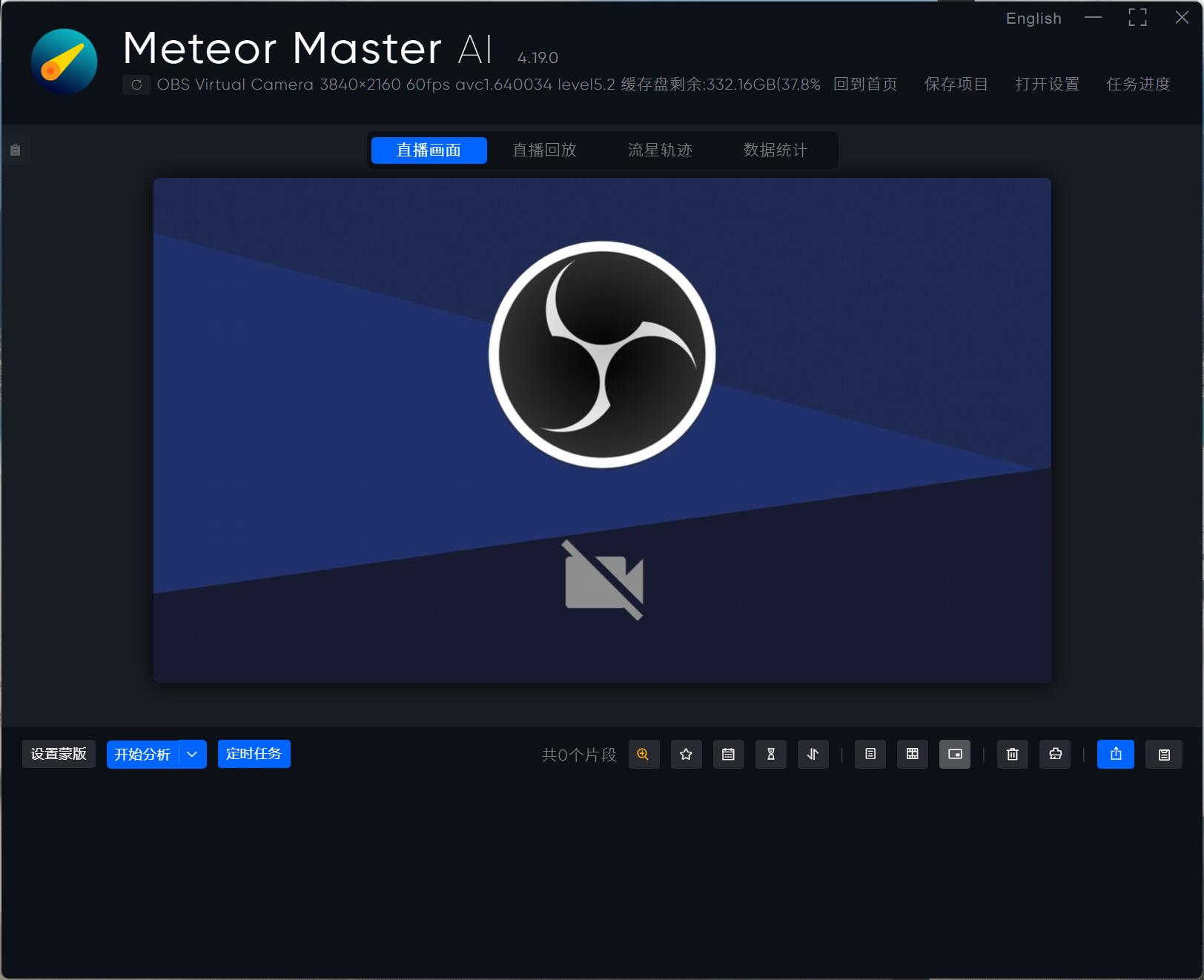
If you're using the OBS virtual camera, set OBS Settings → Video → Common FPS to 30. When the virtual-camera feature isn't started but the OBS camera driver is working normally, you should see a blue OBS frame like the image below.
If you're using a Hikvision camera, use H.264 encoding.
30My Hikvision camera feed is glitchy / pixelated — what can I do?
When adding the live source, try appending -rtsp_transport tcp (no quotes, mind the underscore and the space) to the "Other ffmpeg parameters" field.
31I launched two instances pointing at different live streams, but both show the same picture — why?
Open Settings → Live / OBS Settings, scroll to the bottom, and check the two ports shown in "Live Stream URL". If they're the same, close one Meteor Master, wait a moment, then relaunch it — it will auto-pick a free port on startup.
32Videos exported with the NVENC encoder are only a few KB — why?
Update your NVIDIA driver to the latest version and try again. If the problem persists, switch to the CPU encoder.
33Why does adding a DNG image show an error — "Please confirm the DNG file has a full-size JPG preview"?
Your DNG file doesn't have a full-size preview embedded. You can use the site's DNG conversion tool to automatically embed a full-size preview. Alternatively, when exporting your RAW in Lightroom or ACR, choose DNG output and select "Embed JPEG Preview → Full Size".
34When reading a RAW photo I get the error "Processing xxx failed, task terminated, [extractJpgFromDNG ERROR] [extractJpgFromDngExec] Command failed: XXX, Error: File not found XXX" — what do I do?
This is a bug in your currently installed Adobe DNG Converter. Please download the latest version from Adobe's official site.
35My RTSP URL has a username and password — how do I enter it?
Use this format in the live stream URL field: rtsp://Username:Password@192.168.0.1/path/to/address.

Changelog

08 / CHANGELOG
Total 103 entries·Latest 5.14.0·2026-10-25
2026-10-255.14.016 entries
  • New: In video / live mode, the small arrow to the right of the "Start analysis" button lets you switch configuration files quickly; in photo mode it switches models quickly.
  • New: The night sky gallery and the main view now support showing constellation names and constellation images — each can be turned on or off in the toolbar.
  • New: When exporting video, you can now include the constellation images in the trajectory image and the video as well (Settings → Quick export settings → Add to trajectory image / Add to video → Constellation image).
  • New: The export panel has been re-laid out so the options are grouped more clearly, and a new option for drawing constellation images has been added.
  • New: When exporting a meteor shower video, you can now overlay the constellation image on the final video and the trajectory image.
  • New: When exporting meteor shower photos, you can now draw the constellation image on the star map layer.
  • New: For debugging purposes, the MetDetPy 2.4.0 version has been added back.
  • New: rustafits has been upgraded to 1.6.0, which improves compatibility with FITS files.
  • New: Switching configuration files during a live session now takes effect immediately (from the next clip), so there is no need to restart the analysis manually.
  • New: With multiple instances running, settings are now fully isolated: changing the settings in one window will no longer affect another.
  • New: The automatic mask drawing now replaces the current mask (previously it was combined with the existing mask).
  • New: If no mask has been drawn yet, turning on the "Draw mask" feature now triggers an automatic mask drawing automatically.
  • Fixed: In the night sky calibration, a large roll angle would cause the coordinates to be calculated inaccurately during the subsequent recognition.
  • Fixed: MetDetPy 2.6.1 threw an error when running on macOS.
  • Fixed: Some renderable meteors could be missed when opening the meteor shower video export.
  • Fixed: Half-width colons could not be used in the video watermark.
2026-10-185.13.13 entries
  • New: Upgraded MetDetPy to 2.6.1 and removed the 2.4.0 version.
  • New: Optimized the meteor shower export for photos — a job that used to take 5 minutes now takes less than 40 seconds.
  • Fixed: The image recognition engine was unexpectedly consuming extra system cache.
2026-10-025.13.05 entries
  • New: Added automatic mask drawing.
  • New: Added a folder-monitoring mode for photo folders — it automatically watches the photos in the folder for changes and starts analysis on its own.
  • New: Added a blind-solving algorithm for TMO, improving the accuracy of automatic night-sky calibration.
  • Fixed: Exporting a video clip failed when "Add meteor indicator arrow to video clips" was checked.
  • Fixed: Filled in the missing English translations.
Show full changelog (100 more)1.0.0 – 5.13.0
2026-09-225.12.05 entries
  • New: Added the Night Sky Gallery — review meteors streaking across the real sky from any angle and at any time.
  • New: Photo mode now supports data statistics.
  • New: In live mode, you can now manually pick a frame as the reference image for night-sky calibration.
  • New: In the meteor-reporting panel, the original "Starred clips" option for the upload scope has been renamed to "Currently filtered clips".
  • Fixed: The export folder path was not generated correctly in the export panel.
2026-09-085.11.015 entries
  • New: When importing a photo sequence whose folder contains a mix of RAW and JPG files, the app now asks which of three import modes to use: (1) use the camera-native JPG, (2) extract the embedded JPG directly from the RAW, or (3) transcode to DNG first and then extract the JPG. These new options significantly speed up imports.
  • New: In video / live mode you can now export a max-stack trajectory image (meteors + star-trail effect). The export can run automatically every day via a scheduled task (Scheduled task → Other settings → Export today's stacked trajectory image) or be triggered manually from the export panel (Export → Export clip → Export stacked trajectory image). The output filename is `___stack.jpg`.
  • New: Photo mode now supports exporting a stacked image (Export → Photo stack). You can choose to stack all photos (star trails) or only photos that contain meteors.
  • New: Photo / video mode now supports manually adding a meteor result. On the main video / image view, pick the time point or photo where you want to add a result, right-click → "Add result", and follow the wizard.
  • New: When exporting a meteor shower in video / live mode, you can now preview how the meteors are distributed on the chosen background in real time. Drag the yellow slider under the frame to see the approximate positions and density of meteors that will appear in the final exported video; the line color encodes the result type.
  • New: The "Folder" button under the video export is now "Save as…", letting you re-pick the save location on demand.
  • New: Photo import now supports .3fr files (Hasselblad).
  • New: Each entry in the results panel now has a "Play ±5 s around this clip" action, bound to shortcut P.
  • New: The context menu of each results-panel entry now has "Export extended video", which exports a 10-second clip spanning ±5 s around the current clip.
  • New: The video progress bar now supports dragging to scrub.
  • New: Added a "disable all animations" toggle (Settings → General → Disable all animations). Turning it off frees up a noticeable amount of UI performance.
  • New: Added support for the MetDetPy 2.5.0-RC video recognition engine.
  • New: Added support for the MeteorLive reporting platform.
  • Fixed: The color swatch of the selected entry in the results panel jumped each time a trajectory image finished generating.
  • Fixed: Restored the missing close (×) button at the top-right of the results panel.
2026-08-255.10.42 entries
  • Fixed: Image recognition could not be manually terminated on Windows.
  • Fixed: Image recognition mode became unresponsive when the image count was very large.
2026-08-245.10.33 entries
  • Fixed: 10-bit video export with arrows failed.
  • Fixed: DNG error when reading RAW files; the thread count can now be configured before transcoding starts.
  • Fixed: MOV files could not be selected when opening a project.
2026-08-175.10.24 entries
  • Fixed: Export order was inconsistent with the results panel order.
  • Fixed: Possible DNG error when reading RAW files.
  • Fixed: Resetting settings would also clear folder selections.
  • New: Added log recording to several export tasks.
2026-08-075.10.011 entries
  • New: Dynamic cover — the home screen now supports dynamic background video / images.
  • New: Image export can now overwrite same-name files.
  • New: Added a sort-by-detection-order option (video mode).
  • New: GIF export — one-click conversion to GIF after exporting a video.
  • New: Custom audio — you can use local music when exporting meteor video clips.
  • Fixed: Detection frames did not refresh after updating detection data.
  • Fixed: Arrow direction was calculated incorrectly during export.
  • Fixed: The whole batch failed when exporting images to an external SSD / USB drive.
  • Polished: Recycle bin list now uses relative time display (e.g. "xx seconds ago" / "x minutes ago").
  • Polished: When opening a cached file, a notice is shown if the file is missing.
  • Polished: Task error dialog auto-collapses when it exceeds 5 lines.
2026-07-255.9.016 entries
  • New: Night-sky calibration now supports auto-calibration — the app can extract star points from the frame automatically and propose several candidate calibration results for you to pick from.
  • New: Night-sky calibration can be fine-tuned with the keyboard. WASD pans, QE controls roll, RF controls focal length, TG controls fisheye strength.
  • New: Meteor reporting now supports the Tsinghua University China Fireball Monitoring Network (MeteorLive).
  • New: When extracting RAW previews, the full EXIF data is now also written into the preview image.
  • New: When reading FITS files, the app now reads the file's coordinate and target metadata, so night-sky calibration can land on a near-correct result with almost no manual adjustment.
  • New: Settings now has a "Max thread count" option to cap multi-threaded analysis.
  • New: Update checks — there's now a new-version indicator next to the version number.
  • New: Added default-mask options to "Analyse multiple videos" and "Analyse image sequence".
  • New: On macOS, hold Command and left-click to erase the mask.
  • New: Added arrow buttons on either side of the main preview to quickly switch between results.
  • Fixed: Star-map range rendering for portrait-orientation image sequences during night-sky calibration was wrong.
  • Redesigned the night-sky calibration interaction — clearer prompts and better guidance throughout.
  • Fixed: Video export failed when text watermarks were enabled.
  • Fixed: Time parsing for ZWO FITS files was wrong.
  • Polished the interaction on the home screen's "Analyse image sequence" entry.
  • Polished English translations.
2026-07-025.8.63 entries
  • Fixed: When clicking "Back to home", the cache wasn't being cleaned according to the "Auto clean cache" setting.
  • Fixed: Interaction issues on the English home screen.
  • Fixed: Some sidebar entries were not translated in English.
2026-07-025.8.51 entries
  • Polished in-app copy and fixed several English translation issues.
2026-07-025.8.42 entries
  • Fixed: Frame extraction from timelapse videos produced low-quality images.
  • Fixed: Frame extraction progress was displayed incorrectly for timelapse videos.
2026-07-025.8.31 entries
  • Fixed: Trajectory plots failed to generate correctly after a one-click cleanup.
2026-05-065.8.22 entries
  • In Photo mode, Ctrl + Left/Right now switches between the previous and next photo.
  • Fixed: The large-thumbnail mode wasn't taking effect in Photo mode.
2026-04-305.8.12 entries
  • Added a mask-erase function.
  • Fixed: Auto-save was failing.
2025-04-245.8.06 entries
  • The task-progress button in the top-right now also shows analysis progress when collapsed.
  • Added a "Result panel image display mode" option under General settings, so the bottom-panel thumbnails can show enlarged meteor images for easier review and filtering.
  • Adjusted the global font.
  • Polished the prompts and UI details on the meteor-shower export panel.
  • Fixed: The mouse cursor was stuck in a loading state during idle.
  • Fixed: The magnifier tool stopped working.
2026-04-125.6.01 entries
  • New: Added several mma-bridge endpoints — you can now ask OpenClaw to start analysis on a video, an image sequence, or a live stream directly.
2026-03-165.5.03 entries
  • New: Support for OpenClaw and similar agents — they can now connect to and operate MMA via the MMA Bridge skill.
  • Fixed: NADC reports weren't syncing the meteor coordinate data.
  • Fixed: The filter list wasn't showing the per-shower breakdown.
2026-02-275.4.22 entries
  • Fixed: The interface could freeze after enabling "Auto-delete unused cache".
  • Fixed: A sidebar display issue.
2026-02-265.4.12 entries
  • Underlying architecture rework — project-save logic and memory usage are now more efficient.
  • Fixed: The list might not scroll after selecting an entry.
2026-02-035.4.05 entries
  • New: Added an expanded mode for the result panel. The toolbar's existing "Compact bottom panel" button now toggles between three modes — Expanded, Classic, and Compact — to suit different viewing needs. In Expanded mode you can multi-select with Ctrl / Shift + click, and batch-favorite or delete with F and Del.
  • New: An in-app "Submit feedback / suggestion" button.
  • Fixed: The info panel wasn't showing disk information.
  • Polished: Faster delete feedback when you tap the delete button quickly.
  • Added an option under Settings → About to opt into the User Experience Improvement Program — this controls whether your in-app actions are uploaded to help improve future versions. The cumulative meteor count will also feed into the public total on the MMA website. This does NOT upload your site coordinates, camera orientation, or specific detection results.
2026-01-295.3.26 entries
  • New: The radiant can now be derived automatically from a meteor's trail. The search radius is adjustable in Settings.
  • New: A new filter button in the toolbar lets you filter results by a specific meteor shower.
  • New: The home screen now shows a meteor-shower calendar; the active shower is highlighted when it's currently active.
  • New: The video-mute state is now remembered.
  • Fixed: The detection-frame position went wrong when the window was resized.
  • Fixed: Exported shower videos had incorrect photo filenames.
2026-01-215.2.05 entries
  • New: Video and live-stream modes now support one-click align + export of a meteor-shower video, and a corresponding meteor-shower photo is generated alongside the video.
  • New: When exporting a meteor panorama in Image mode, an "Original projection" option has been added — it overlays the meteors onto your chosen base image without distorting the base.
  • New: Saving a project file now also saves the mask image together with it.
  • New: The export panel's data export can now write xlsx or json files.
  • New: When opening a project file, you can re-run night-sky calibration. This lets old, uncalibrated projects one-click export a meteor shower too.
2026-01-145.1.07 entries
  • New: The meteor-result panel now supports adjusting the start- and end-point direction.
  • New: A toolbar toggle to turn the direction indicator in the star map on or off.
  • New: Night-sky calibration data can be cleared manually from the live info panel.
  • New: MeteorMasterDetectorAI upgraded to 2.3, adding direction recognition for meteors.
  • New: Image mode export now includes a "Meteor panorama" function — follow the on-screen guide to export a transparent meteor layer that's been auto-aligned and auto-stitched. You can drop this layer into PTgui or any other panorama tool for the post-production stack.
  • New: When exporting trajectory plots in live-stream mode, the capture-time EXIF is written in automatically.
  • Fixed: Star-map parsing failed on entering live-stream mode.
2026-01-085.0.217 entries
  • New: Added a "Camera calibration" feature across video, live, and photo detection modes. By manually matching the frame to the star map, you can obtain precise azimuth and elevation for the camera, and subsequent detections can automatically pull each meteor's equatorial or horizontal coordinates. The workflow is heavily polished — just follow the on-screen prompts step by step. Supports any-focal-length linear lenses and fisheye lenses (excluding full-sky fisheye).
  • New: NADC reports will now auto-fill the meteor's elevation and azimuth.
  • New: A "Copy data to clipboard" option was added to the result-panel menu.
  • New: A "Copy data to clipboard" option was added to the detection-frame right-click menu.
  • New: The result right-click menu's "Change type" was renamed to "Adjust result" — you can now adjust the type and the specific coordinates (azimuth etc. are recalculated automatically).
  • New: Toolbar buttons to toggle the star map's grid and constellation overlays on or off.
  • New: When a star map is set, the statistics page's incoming-direction field (screen coordinates) switches to the horizontal-coordinate frame.
  • New: Image-mode analysis now supports saving project files.
  • New: The video progress bar can be clicked to jump to that position.
  • New: MetDetPy updated to 2.4.0 with brightness-based and visual-quality-based sort options.
  • Cache cleanup now follows the "General → Hard-delete" option instead of always skipping the Recycle Bin.
  • DetectorAI-related settings moved under "Image Analysis Settings".
  • Fixed: The detection frame's right-click menu didn't work on macOS.
  • Fixed: NADC report previews didn't show on macOS.
  • Fixed: Geo entries in the schedule panel couldn't be deleted properly.
  • Fixed: Launch-at-login couldn't be reliably cancelled.
  • Fixed: Some meteors had negative durations.
2025-12-244.24.13 entries
  • New: Added a toggle to detect a frozen renderer and trigger a reconnect (Live Settings → Still-frame detector).
  • New: Image detection now supports the .hif extension.
  • Removed the strict DNG Converter check when opening live-stream video detection.
2025-12-184.24.014 entries
  • Reach out to the author to join the Meteor Master Stargazer community — we'd love to have you!
  • New: The arrow on exported videos is now customisable (General → Use custom arrow).
  • New: DetectorAI upgraded to 2.2, with a new fast-detection mode (on by default) that trades a small amount of accuracy for speed (Engine Settings → Fast detection mode).
  • New: Added the V8S_1.0 image-recognition model — a smaller model for lower-spec devices.
  • New: A "View log" button now appears after image and local-video analysis finish.
  • New: Image recognition now supports heif and heic.
  • New: Right-click a detection frame to delete it or change its class.
  • New: The statistics page's charts now reflect the currently filtered data.
  • New: The result panel can switch between mouse-wheel scroll and trackpad scroll (General → Result-panel scroll method).
  • Fixed: The detection frame's position was wrong for portrait-orientation images.
  • Fixed: On macOS, when an associated folder is missing on restart, the prompt now explains how to fix it instead of just erroring out.
  • Fixed: On macOS, opening a project file after local-video analysis reported a video error.
  • Polished several ambiguous UI strings and English translations.
  • Updated the MetDetPy engine to 2.3.2.
2025-12-134.23.03 entries
  • New: The home screen's "Analyse OBS virtual camera" has been replaced by "Analyse camera". In addition to the original virtual cameras, it now also supports any plug-and-play camera input — USB webcams, camera streaming, and the like.
  • Fixed: Clicking "Back to home" could sometimes wipe cache files unexpectedly.
  • Fixed: macOS couldn't analyse photos.
2025-12-094.22.05 entries
  • New: Multiple auto-filters can now be active at the same time.
  • New: Batch export now has an option to add bounding boxes to trajectory plots.
  • New: The OBS virtual camera can now smart-match its input frame rate (no longer capped at 60 fps).
  • Fixed: Batch export failed when "Export video by date" was enabled.
  • Fixed: Sidebar buttons showed the wrong state when opening a video-analysis project.
2025-12-014.21.014 entries
  • Live stream now supports pause-play to save performance (does not affect analysis).
  • A checkmark is now shown on the "Add mask" button once a mask is set.
  • MetDetPy upgraded to 2.3.1.
  • New: Detects a frozen frame and judges the camera as offline — if no updates for 10 consecutive seconds, automatically starts a reconnect.
  • New: Hardware encoders can now be picked for the OBS camera and live-stream re-encoding.
  • New: A coloured dot on the filter button now reflects the filter's on/off state.
  • New: Input video info now appears on the info panel.
  • New: In the one-click and custom delete dialogs, you can choose whether to also delete the already-exported videos / trajectory plots.
  • Fixed: When filters were active and you deleted a result, the next one couldn't always be selected.
  • Fixed: With "Auto-delete unused cache" on, closing the app could delete cache files by mistake.
  • Fixed: The recording process could crash.
  • Fixed: Long cache filenames overflowed the info panel.
  • Fixed: First-time users on photo analysis saw an error because no detection engine was pre-selected.
  • Fixed: macOS threw an error at the end of an image-analysis run.
2025-11-094.20.42 entries
  • Live-stream URLs can now include extra ffmpeg arguments.
  • Added keyboard shortcuts for quickly exporting video and images.
2025-10-314.20.34 entries
  • New: The text shown above a detection frame is now configurable (confidence / length / duration / class name).
  • Fixed: Deleting a result didn't also delete its already-exported video.
  • Fixed: Schedule-based video export wasn't splitting output into per-day folders.
  • Fixed: Configuration-file changes didn't take effect when using MetDetPy 2.3.0.
2025-10-134.20.23 entries
  • Fixed: An edge case where saving could fail.
  • Fixed: An edge case where stopping / starting analysis didn't work normally.
  • Added more debug info and controls to the side info panel.
2025-09-194.20.13 entries
  • Fixed: In some cases, image-recognition result frames were drawn in the wrong place.
  • Fixed: Several English translation errors.
  • New: When configuring a live-stream URL, you can now choose to start analysis immediately or kick off a scheduled task after auto-connect.
2025-09-164.20.03 entries
  • MeteorMasterDetectorAI upgraded to 2.1, with the model bumped to V8L_1.2.5 — significantly better detection accuracy.
  • Image-recognition mode now supports lightning detection.
  • Image-recognition mode now shows an image list box, listing every image in the analysed folder.
2025-09-054.19.15 entries
  • When opening an h264-encoded video that isn't in an MPEG-4 container, the app will ask to transcode it. The transcode is very fast and has no performance cost in this case.
  • Added an "Empty recycle bin" action to the Recycle Bin list.
  • Fixed: After deleting a result that had a trajectory plot, restoring it from the Recycle Bin showed no preview thumbnail.
  • Fixed: With "Auto-delete unused cache" on, returning to home and quitting the app didn't actually clean the cache.
  • Fixed: With "Auto-delete unused cache" on, the quick-clean action didn't fully clean the cache.
2025-09-034.19.013 entries
  • MetDetPy upgraded to 2.3.0 with a new trajectory-plot denoise option.
  • When analysing multiple videos, an extra "force transcode at the join point" option can repair broken video files and reduce mid-analysis errors.
  • Added a "launch at login" toggle (off by default).
  • New: In the "Analyse live stream → Set live URL" panel, you can now set a default mask image — it's auto-loaded every time you start an analysis.
  • New: In the same panel, you can set the app to auto-connect to a URL after 5 seconds of no user activity on launch, and start analysis right away. Combined with the new launch-at-login option, this gives a truly unattended boot workflow.
  • New: The result panel now has a compact mode (toggle from the toolbar). In compact mode, the result entries are smaller, so more of them fit on the screen at once.
  • Added a confirmation dialog when deleting starred items.
  • When clearing all results (or rule-based cleanup), an option now lets you choose whether to also delete the associated cache.
  • When configuring cache and export folders, the app now shows the warning: "Do not put storage on NAS or other network devices".
  • NADC reports can now include elevation and azimuth info (optional).
  • Fixed: The red map pin in the schedule panel didn't match the configured coordinates.
  • Polished: Smoother scroll animation in the result panel.
  • Polished: Cleaner buttons and mini-menu in the result card's top-right.
2025-07-244.18.12 entries
  • Fixed: The "Jump to end of queue" button rendered incorrectly.
  • Fixed: The export dialog rendered incorrectly.
2025-07-174.18.02 entries
  • Polished the UI so the window can be shrunk smaller. In live-stream mode, the URL panel now has an HTTP proxy option, and each result has a one-click shortcut to its cache file location.
  • Quickly merge the current clip with the next one into a single video.
2025-06-114.17.01 entries
  • Added an "auto-save project when analysis finishes" option in the schedule panel. The left sidebar now also shows a save log.
2025-06-064.16.51 entries
  • The "Push to MeteorMasterAI" panel now shows the local LAN and public IP addresses.
2025-05-274.16.02 entries
  • New: A welcome page now appears on first launch, walking new users through the required initial setup.
  • Added an auto-save feature.
2025-05-204.15.111 entries
  • Fixed: The schedule's start / end times behaved incorrectly when a task ran past midnight.
2025-05-124.15.103 entries
  • Fixed several English translation issues.
  • Polished the configuration-file display style in Settings.
  • Exported video filenames no longer contain Chinese characters in the English locale.
2025-04-224.15.91 entries
  • Fixed: NADC login was failing.
2025-04-084.15.82 entries
  • Fixed: The magnifier tool stopped working.
  • Moved the home-screen language switcher and tutorial links to the bottom-right corner.
2025-03-114.15.71 entries
  • Fixed several issues.
2025-03-034.15.42 entries
  • Optimised cache handling — significantly lower memory usage.
  • Added a debug mode.
2025-02-064.15.32 entries
  • Fixed: Auto-filters weren't taking effect.
  • Fixed: Deleting an entry left the wrong result selected.
2025-01-284.15.21 entries
  • Fixed: With auto-export trajectory plots on, submitted meteor reports had no image attached.
2025-01-234.15.03 entries
  • MetDetPy upgraded to 2.2.0.
  • Result-panel meteor counts are now shown as coloured dots.
  • The meteor-reporting panel now has an offset-time button for batch-adjusting timestamps.
2025-01-214.14.42 entries
  • Fixed: Opening a project file errored out when some cache files were missing.
  • Optimised project-open flow — lower memory usage on startup.
2025-01-154.14.34 entries
  • Fixed: Exported framed trajectory plots were excessively large.
  • Adjusted the max selectable pre-roll and post-roll to 10 s.
  • Exported trajectory plots now include pre-roll and post-roll.
  • The meteor-reporting panel now lists the Meteor Master Stargazer Community (MMSC).
2025-01-114.14.21 entries
  • Fixed: Video analysis could hang. Also fixed some copy errors.
2025-01-104.14.17 entries
  • Added a meteor-reporting panel — now integrated with the National Astronomical Data Center (NADC) fireball-reporting platform, so you can upload and submit meteor clips from inside the app.
  • Video-analysis mode now supports merging the analysis of multiple videos.
  • Added an automatic DX12 compatibility check at startup. If unsupported, the app falls back to a compatibility mode automatically.
  • In video and live-analysis mode, the top info bar's frame-rate now also shows the detector's actual detection rate, so you can adjust the shutter time accordingly.
  • Fixed: On lower-spec systems, clips and compilations exported via the schedule panel sometimes weren't produced.
  • Fixed: Timelapse export failed when the result list was empty.
  • Fixed: Exported timelapse videos had the wrong frame rate and were oversized.
2024-12-304.13.05 entries
  • In live-analysis mode, a cache-list panel was added to the left side of the main view, showing the analysis state of each cached segment.
  • In live-analysis mode, manually stopping analysis no longer stops the analyser immediately — it keeps going until all cached segments are processed.
  • In video-analysis mode, enabling multi-threaded analysis now reserves one thread less to give the system more breathing room.
  • The cache-disk usage indicator now shows free space instead of used percentage.
  • The analysis-progress panel now includes a throughput indicator — when it drops below ×1, the system is performance-limited.
2024-12-214.12.38 entries
  • Live-stream analysis now supports the SRT protocol.
  • Settings → Auto-filter now lets you filter by type and shows the current rule as text.
  • A custom panel was added to the one-click-clear action — you can set which durations and lengths are eligible for one-click removal.
  • Fixed: With MetDetPy 1.3, the red detection frame didn't show.
  • Fixed: Vertical and horizontal meteors were being obscured by the detection frame.
  • Fixed: One-click clear wasn't cleaning the cache.
  • Fixed: Quick-export didn't write to the folder next to the source video.
  • Fixed: In image-recognition mode, aircraft and meteors couldn't be filtered correctly in the list.
2024-09-094.11.13 entries
  • Polished the UI: restyled and reordered several buttons, and moved the Settings button to the top-right.
  • Fixed: A few untranslated strings in some places.
  • Fixed: The schedule panel's red map pin was misplaced when first opened.
2024-09-064.11.02 entries
  • V8L image-recognition model upgraded to 1.1.
  • Image-recognition mode export now supports generating a timelapse video.
2024-08-304.10.04 entries
  • Added a "Filter type" button (funnel icon) in the toolbar — quickly filter the result list to meteors, aircraft, or sprites.
  • Removed the filter-result option from image-analysis settings; this is now handled by the toolbar button.
  • The magnifier tool is now toggleable, and a new "Magnifier" button has been added to the toolbar.
  • Each detected result frame now has a close button for manual removal.
2024-08-284.9.03 entries
  • Upgraded the image-recognition engine MeteorMasterDetectorAI to 2.0 with hardware acceleration for AMD and Intel GPUs; the V5X model was upgraded to V8L.
  • Upgraded MetDetPy to 2.1.0 with GPU hardware acceleration; fixed several known issues and lowered the false-positive rate.
  • Added a "Reduce CPU usage" option in live-stream mode — trades a lower detection rate for lower CPU load.
2024-08-164.8.25 entries
  • Fixed: macOS input boxes couldn't copy / paste.
  • Fixed: After filtering the list, clicking delete didn't highlight the next entry.
  • Fixed: RAW analysis could re-transcode the same file.
  • Fixed: On macOS, dot-prefixed files were being read and stalling image analysis.
  • Photo export can now choose to export only the filtered images.
2024-08-094.8.05 entries
  • Detection engine upgraded to 2.0.2; fixed several known issues.
  • Added an option to draw a red bounding box on the exported trajectory plots.
  • Added a timelapse-video frame-extraction feature (from the image-analysis entry) with customisable extraction.
  • Fixed: Transcoding errors on the home screen produced no message.
  • Fixed: Trajectory-plot export progress was shown incorrectly.
2024-07-234.7.05 entries
  • An arrow indicator can now be added to exported videos.
  • In live-stream mode, the URL can now be changed quickly.
  • The schedule panel now remembers GPS coordinates you've used before.
  • You can now auto-filter out meteors that are too short in duration or length.
  • Simplified the schedule code — scheduled tasks can now run across midnight (no longer restricted to 00:00–23:59).
2024-07-114.6.21 entries
  • Fixed: NVIDIA GPU video export could fail.
2024-06-274.6.04 entries
  • Video and live-stream modes now support exporting a timelapse video.
  • Scheduled tasks can now auto-export the previous night's timelapse every day.
  • When exporting video clips, a meteor-indicating frame can be drawn on the video.
  • Live-stream URLs can now be shown / hidden with one click.
2024-04-124.5.02 entries
  • Added a delayed-start option.
  • Added a low-disk-space warning.
2024-02-274.4.02 entries
  • Added an option to auto-clean the live-stream cache after detection — dramatically reduces cache size.
  • Fixed: Batch delete could corrupt the saved project data.
2024-02-124.3.02 entries
  • The live-stream cache can now be stored in a separate folder of its own.
  • The schedule panel now supports per-minute time offset adjustments.
2024-02-034.2.21 entries
  • Fixed: A Windows-specific issue that could cause analysis to freeze.
2024-02-014.2.14 entries
  • Fixed: The mask wasn't drawn correctly when the sidebar was open.
  • Fixed: The sidebar meteor count was empty.
  • Fixed: Trajectory plots weren't auto-exported.
  • Fixed: The latest-meteor carousel was stuck on the first image.
2024-01-314.2.01 entries
  • Added a button to collapse the bottom panel.
2024-01-304.1.01 entries
  • Improved the secondary window's content.
2024-01-264.0.022 entries
  • MetDetPy upgraded to 2.0.1.
  • Removed the option to delete to the system Recycle Bin.
  • Trajectory-plot generator state is now selectable at startup.
  • Clips can now be filtered by date.
  • Export-task progress is now displayed.
  • After a scheduled task finishes, you can now opt to auto-generate the daily video and compilation.
  • After a video export finishes, you can now quickly jump to the exported clip.
  • In live-stream mode, the progress panel now shows the time until the next slice starts.
  • Video export now supports custom watermarks.
  • Auto-reconnect to the live stream to prevent frozen frames.
  • A secondary window is now supported for displaying data and clips.
  • Streaming software can now push to Meteor Master AI — OBS can multi-instance and connect to multiple Meteor Master AI instances at once.
  • In live-stream mode, the statistics granularity can be cut by real time or by live time.
  • Improved the frame-rate display on the video info card.
  • In live-stream analysis, the elapsed time now reflects actual operation time and no longer resets on signal interruption.
  • Recycle Bin now shows a count badge.
  • Toolbar UI simplified.
  • When exporting live-stream clips, the filename now uses the live-stream profile name.
  • Settings for encoder / encoding / export quality are now kept in sync with the export panel.
  • Fixed: When one of the start/stop times in the schedule was set to manual, the timer stopped working.
  • Fixed: After a long live-stream interruption, analysis didn't auto-restart.
  • Fixed: The macOS dock-icon progress bar flickered.
2024-01-113.6.08 entries
  • MetDetPy upgraded to 2.0.0, with custom-config support.
  • MeteorMasterDetectorAI upgraded to 1.1.
  • Settings panel and schedule panel UI refresh.
  • Added a quick-reconnect button for video live streams and OBS.
  • Added a one-click clear, jump-to-top, and jump-to-bottom for the result list.
  • Image-sequence analysis can now show each image's EXIF capture time.
  • Live streams / OBS without preset coordinates can now specify a coordinate and use the auto start/stop feature.
  • Added a new live-stream push URL.
2023-12-293.5.01 entries
  • Brand-new UI, optional 200 Mbps export bitrate, support for saving a single file with 3,000+ meteors, fixed a crash on export with very large result sets, rewrote the data-processing module — better performance and lower footprint.
2023-09-053.4.32 entries
  • Fixed several small prompt issues.
  • Now available on the Microsoft Store.
2023-08-243.4.03 entries
  • Mouse-wheel zoom is now supported while drawing the mask.
  • Added an option in image analysis to show only meteors in the result list.
  • Added the English UI.
2023-08-243.3.13 entries
  • Added a magnifier tool.
  • Skip transcoding for DNGs that already have a full-size preview embedded.
  • Fixed: CUDA detection errors on some PCs.
2023-08-183.2.14 entries
  • JPEG files are now supported.
  • Added validity checks for PNG files.
  • Fixed: A white-screen crash on some systems.
  • Fixed: The RAW-transcode error dialog kept popping up when transcoding failed.
2023-08-153.2.04 entries
  • RAW → JPG extraction is now multi-threaded.
  • Already-extracted JPGs are no longer re-extracted.
  • Fixed: The mask couldn't be saved when the live-stream URL contained a question mark.
  • Fixed: Garbled log output.
2023-08-113.1.72 entries
2023-07-293.0.31 entries
  • Added a right-click menu on Windows; on macOS, CoreML acceleration is now supported. This is a native ARM build, and Intel support has been dropped.
2023-07-093.0.21 entries
  • Fixed: Analysing a folder with 1,000+ photos would never auto-finish.
2023-07-043.0.01 entries
  • Added Meteor Master Detector AI, with support for detecting meteors in photos.
2023-06-262.5.01 entries
  • H.265-encoded video is now supported.
2023-04-112.4.21 entries
  • Added a log so detection errors are easier to debug.
2023-03-202.4.01 entries
  • Added data-statistics charts.
2023-03-142.3.51 entries
  • Added Excel export of detection results.
2023-02-202.3.21 entries
  • Added per-clip meteor-trajectory image generation; fixed several issues.
2023-02-032.2.31 entries
  • Export filenames can be auto-numbered for sort order; multi-instance is now supported without "port in use" errors.
2023-02-022.2.01 entries
  • Added auto start/stop during live analysis; the list can now be sorted by timestamp, score, meteor length, meteor count, and duration.
2023-02-012.1.01 entries
  • Analysis and export of audio-less video are now supported; live-stream URLs can be saved; live projects can be saved; added an "Auto-delete" feature.
2023-01-312.0.91 entries
  • Fixed list export not responding.
2023-01-302.0.81 entries
  • Fixed a bug where the last batch failed to export when the list had more than 50 entries; fixed some meteor results being lost.
2023-01-292.0.71 entries
  • Fixed a bug where the back-to-home button didn't work; the progress bar now reflects the foreground task progress instead of the analyser's internal progress.
2023-01-252.0.61 entries
  • Added save / load for results; the export dialog now exposes H.264 / H.265 options; optimised batch-export performance.
2023-01-252.0.41 entries
  • Fixed export issues; added macOS support.
2023-01-232.0.31 entries
  • Fixed export issues; fixed list lag.
2023-01-132.0.01 entries
  • Added live-stream analysis.
2022-12-171.3.11 entries
  • Upgraded the detection engine, added a sensitivity option, and added a confidence score for each detected meteor.
2022-04-111.0.01 entries
  • First release.

Support

09 / SUPPORT

Feedback, the open-source detector, copyright and terms of use.

01

Feedback

Feedback and suggestions are welcome — you can reach me via the message button in the top-right or by email: mordom@foxmail.com

02

Open-source detector

The detector MetDetPy is open source — pull requests are welcome: github

03

Copyright

National Copyright Administration of China registration number: 2024SR1514827

04

Terms of use

Reverse-engineering, repackaging, modifying, or redistributing the software (including the free version offered here) without the author's consent is prohibited. Infringers will be prosecuted.