DNG TIMELAPSE TOOL / ARCHIVE
Set the keyframes,
the rest follows.
Grade the keyframes in Lightroom and DTT works out the transition parameters for the whole sequence.
1.0.6 · Windows / macOS · no longer updated
Quick links
Start withthe interface
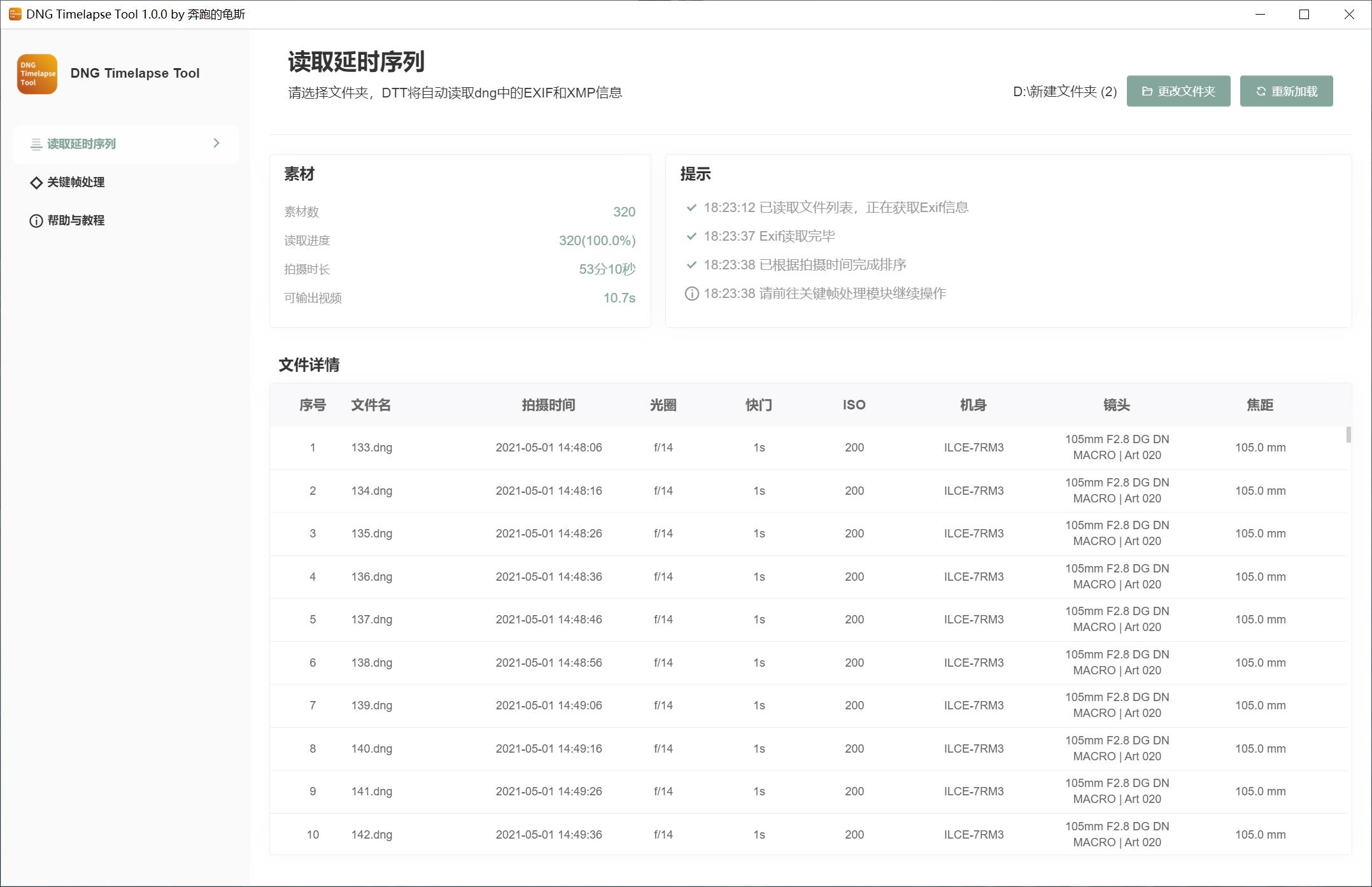
01 / SHOWCASEA 320-frame sequence, fully read: media panel on the left, file details on the right.
The story behind
DNG Timelapse Tool
02 / WHYA timelapse is usually hundreds of frames shot in sequence, later rendered into a video that looks like the scene sped up.
Because the light shifts from first frame to last, photos from different moments need different grading — and doing that by hand across hundreds of frames costs hours. With DNG Timelapse Tool you work the way you would in a video editor: set keyframes, grade them, and the app works out the grading for every frame in between.
The app watches the keyframe files on disk to know whether you have adjusted a photo. If you have, it recalculates and writes the parameter changes across the whole sequence.
Tutorial
03 / WORKFLOWSeven steps, from picking a folder to reading the data back in Lightroom.
Launch DTT
Launch DNG Timelapse Tool ("DTT" for short).
Choose a folder
Click "Select folder" and DTT reads every DNG inside it, treating the batch as one timelapse sequence.
Read EXIF / XMP
DTT needs a while to read the EXIF and XMP data of every photo; how long depends on your machine. A 3,000-frame sequence usually takes under five minutes. Progress shows in the media panel. When it finishes, DTT sorts the photos by time, and if it finds frames numbered 9999 and 0000 it offers to rename them automatically.
Set keyframes
When reading finishes, the "Keyframe processing" panel on the left lights up. Drag the timeline or the zoom slider to set keyframes. Setting or clearing a keyframe is written into the DNG file right away, as a 4-star rating. If a photo already carries 4 stars when the sequence is first read, it becomes a keyframe automatically.
Grade in your editor
Grade the keyframes (the 4-star frames) in the editor you already use — Lightroom, Adobe Camera Raw. The moment it saves the data into the DNG files, DTT picks up the change and recalculates the transition parameters for the whole sequence.
Save the sequence
Once every keyframe is graded, click "Save sequence" and DTT writes the calculated parameters into the DNG files in bulk.
Read the data back
Read the metadata in your editor and the auto-transitioned grading is there.
Other questions
04 / FAQEight questions, all of them things you actually run into.
01My frames reach 9999, then start again at 0001 — what should I do?
Camera file numbers are four digits, so when they reach 9999 the camera starts a new folder and counts from 0001 again. It looks like two sequences but it is really one. Put both halves in the same folder and read them with DTT: when it finds frames numbered 9999 and 0001 together it offers to rename them. The sequence then runs 1.dng, 2.dng … in capture-time order, with no limit on digit count.
02Why do some grading options have no effect?
Some options cannot be interpolated, either because DTT cannot tell what you intended or because the value is simply not a number. Those are copied from the first keyframe unchanged: red-eye correction, [Basic] profile, [Basic] white balance type, [Basic] auto-exposure toggle, [Tone Curve] custom curve, [Lens Corrections] profile options, [Lens Corrections] lock crop, [Calibration] process version. These are ignored outright: graduated filter, radial filter, spot removal.
03Does it support a burst-shot timelapse?
In theory yes. But some cameras drop milliseconds from the capture time, so several frames shot inside the same second look simultaneous to DTT, which then falls back to file numbers for ordering. That normally works, though it is not impossible for something to go wrong and leave the order scrambled.
04My camera shoots ARW, or some other format — can I still use DTT?
Sorry, no. Convert to DNG first, then bring it into DTT. Adobe DNG Converter, or the automatic DNG converter written by the author of this tool, will get you there. Note that jpg / heif / png are images, not RAW, so they cannot be turned into DNG — forcing it causes unpredictable problems. Shoot RAW in camera.
05How do I restore my photo files?
DTT only writes XMP adjustment values, and bugs that write the wrong values are certainly still possible. Use the "Reset" button in Lightroom to clear them.
06Why doesn't DTT pick up my adjustments in Lightroom?
First, Lightroom must have auto-write turned on: Edit - Catalog Settings - Metadata - tick "Automatically write changes into XMP". Second, if you are working in more than one app at once, Lightroom may ask "The file on disk has changed. Import the disk settings?". Until you import, its changes are not written into the DNG files and DTT will not see them.
07How do I get the data DTT saved into Lightroom?
Option 1: in the Library module select all photos, then right-click Metadata - Read Metadata from Files. Option 2: in the Library module pick the folder on the left, right-click Synchronise Folder and tick Scan for Metadata Updates.
08How do I set keyframes?
In DTT a keyframe is simply a 4-star file. Click the star button on the timeline to set one, click again to clear it. A 4-star photo is recognised as a keyframe when the sequence is first read — but once it is loaded, rating a photo 4 stars in another app will not turn it into a keyframe.